FLY GEAR SWAP · DRONE STARTER GUIDE
Top Hat Frog — Djinn 2.5
Getting started with your custom FPV aircraft
4S · PROPS OUT · DJI O4 PRO · ELRS
Revised 19 October 2026
1. Meet your Top Hat Frog
This guide takes you from the first inspection to a short first hover with the Quadmula Djinn 2.5-inch Top Hat Frog. This aircraft uses 4S power and props-out rotation. Confirm the aircraft in your hands still matches the build record.
Listed equipment: Flywoo F722 Pro flight controller, 45A 4-in-1 ESC, iFlight XING2 1404 3800KV motors, DJI O4 Pro video, HappyModel EP1 2.4 GHz ExpressLRS receiver, GPS, loud buzzer and custom green TPU.
Have ready: a compatible ELRS radio, O4-compatible goggles, the approved 4S LiPo, a suitable balance charger, a USB data cable, prop tools and a cooling fan. Battery, goggles, radio and charger are separate unless your purchase arrangement says otherwise.
Start safely: disconnect the flight battery and remove all four propellers before powered setup, radio checks or motor tests. Catalog photos show the assembled aircraft; leave props off for bench work.

2. Inspect, connect and back up
Work on a clear, dry bench. With battery and USB disconnected, check the frame and arms for cracks, motor screws for looseness, and wires for chafing or exposed conductors. Turn each motor gently by hand to check for debris or rubbing. Check the camera, GPS mount, antennas and battery strap.
Use only the approved 4S battery with the correct connector, polarity, dimensions and secure fit. Do not infer the aircraft battery rating from an ESC or capacitor marking. Route both the main lead and balance lead away from all propeller arcs.
- With props removed, connect a data-capable USB cable to the flight controller. Choose its port in a compatible Betaflight App/Configurator and connect.
- Record the firmware version and exact board target. Save the CLI diff all output as a dated text file before changing anything. Also capture your Modes, Receiver and OSD settings.
- Keep the existing tune, ports and receiver settings unless a verified problem requires a change. Starting out does not require a firmware update.
- Move the aircraft by hand and verify that Betaflight's model tilts and turns the same way. If it does not, resolve board orientation before proceeding.
If USB does not connect, try a known data cable and another port. USB may not power the receiver or air unit. Use the correct flight battery only when needed, with props off and airflow over the O4 Pro. Disconnect promptly when finished.


3. Check your radio and video
The ELRS radio controls the aircraft; DJI supplies the video link. A good picture does not prove that control is working.
- Turn on the radio, select the intended model, put ARM off and lower the throttle. Turn on the goggles, then power the aircraft. Keep it still during initialization.
- If ELRS is already bound, preserve that setup. If it is not, verify the receiver model and compatible firmware before following the official ELRS binding procedure. Do not guess a firmware target.
- In Receiver, move one stick at a time. Confirm roll, pitch, yaw and throttle move the correct channel and return as expected. For a conventional setup, centered axes are near 1500 and the travel is roughly 1000-2000; use the existing configured endpoints and resolve reversed or missing channels before flight.
- In Modes, operate each switch and verify ARM, your intended flight mode and BEEPER if assigned. Record which switch does what. Practice immediate disarm without looking down.
- Confirm the O4 Pro and goggles are paired and video is clear. Follow DJI's instructions for your exact goggles if activation, pairing or an update is needed. Keep the air unit cooled on the bench.
- Read live battery and radio-link information in the goggles. Test the buzzer briefly with props off and learn its installed power-off silencing procedure.
Failsafe: identify the configured radio-loss action and verify it props-off using the procedure for your installed Betaflight version. Do not test radio loss for the first time in flight or assume GPS Rescue is already proven.

4. Verify props-out rotation
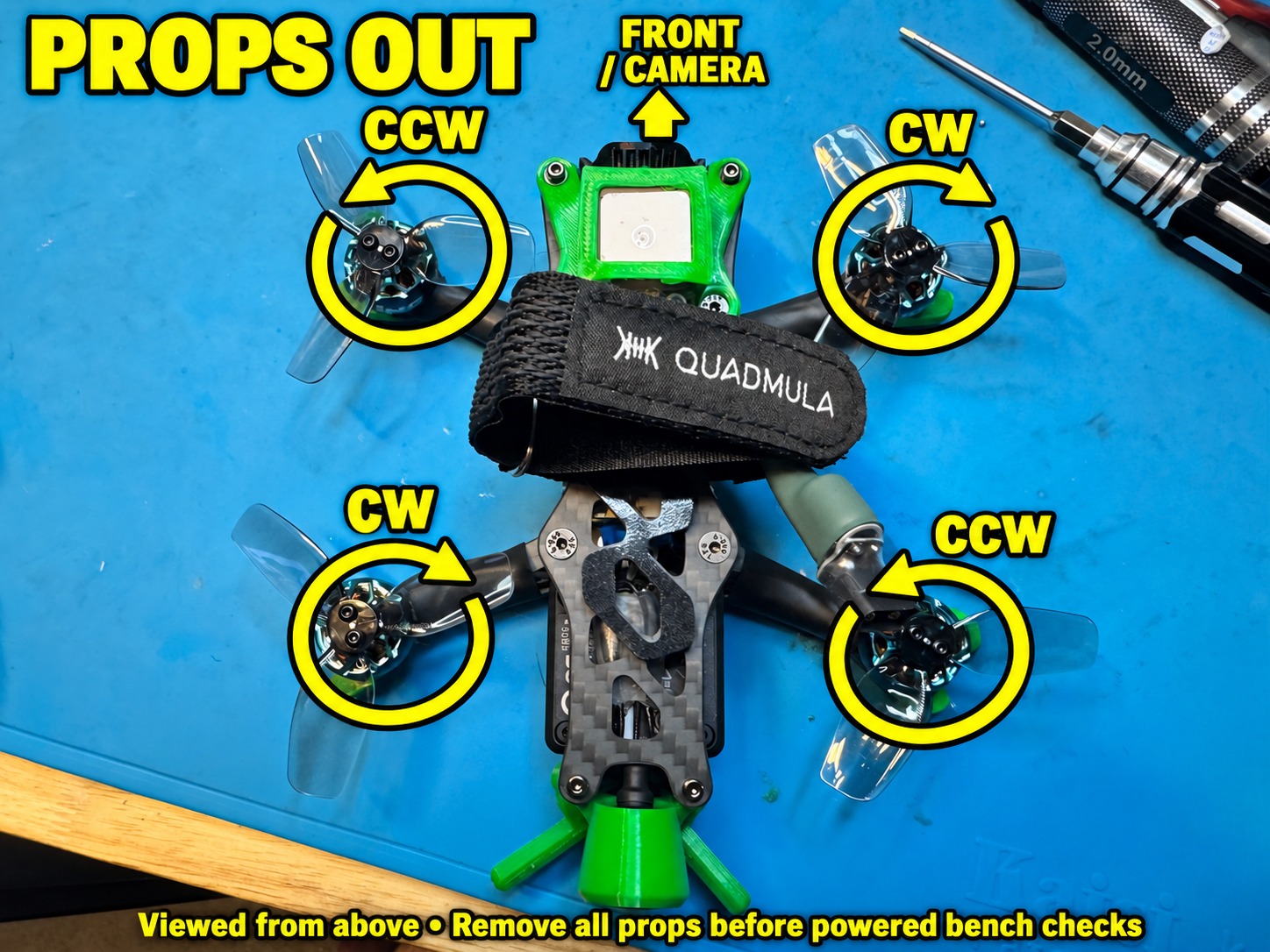
All four propellers must be removed for every powered check on this page. The directions below are viewed from above, with the camera/nose pointing away from you.
Front left: counterclockwise. Front right: clockwise.
Rear left: clockwise. Rear right: counterclockwise. The front pair sweep away from the camera at their forward edges.
- Confirm the motor layout and board orientation. Use Betaflight's motor-order test and its on-screen diagram to confirm each motor number drives the correct physical corner. Do not assume numbering from wire colors.
- For this props-out build, the mixer setting Motor direction is reversed should be enabled (wording may differ with version). This tells the flight controller which rotation pattern to expect; the switch alone does not reverse the actual motors.
- Following the motor-test safety prompts, power the ESCs and test one bare motor at a time at low speed. Use a visible mark on the bell to observe direction without touching it. Keep hands and loose objects clear; stop after each check.
- If actual rotation disagrees, use the supported Motor direction tool or the correct ESC configuration tool to reverse that motor. Do not flash guessed ESC firmware. Recheck all four actual directions against the props-out diagram.
- Stop the motors and disconnect both battery and USB before fitting props. Put each correct CW/CCW prop on its matching corner with its raised leading edge entering the rotation. A correctly fitted prop produces downward airflow; flipping a wrong-handed prop upside down is not a fix.
- Secure the props with the correct hardware, then turn them by hand with power disconnected to check clearance from the GPS mount, TPU, battery strap and wiring.
Keep motor order, actual rotation, mixer expectation and prop placement consistent. If the aircraft flips on takeoff, disarm immediately and recheck these four items with props removed.
5. Adjust the Betaflight OSD
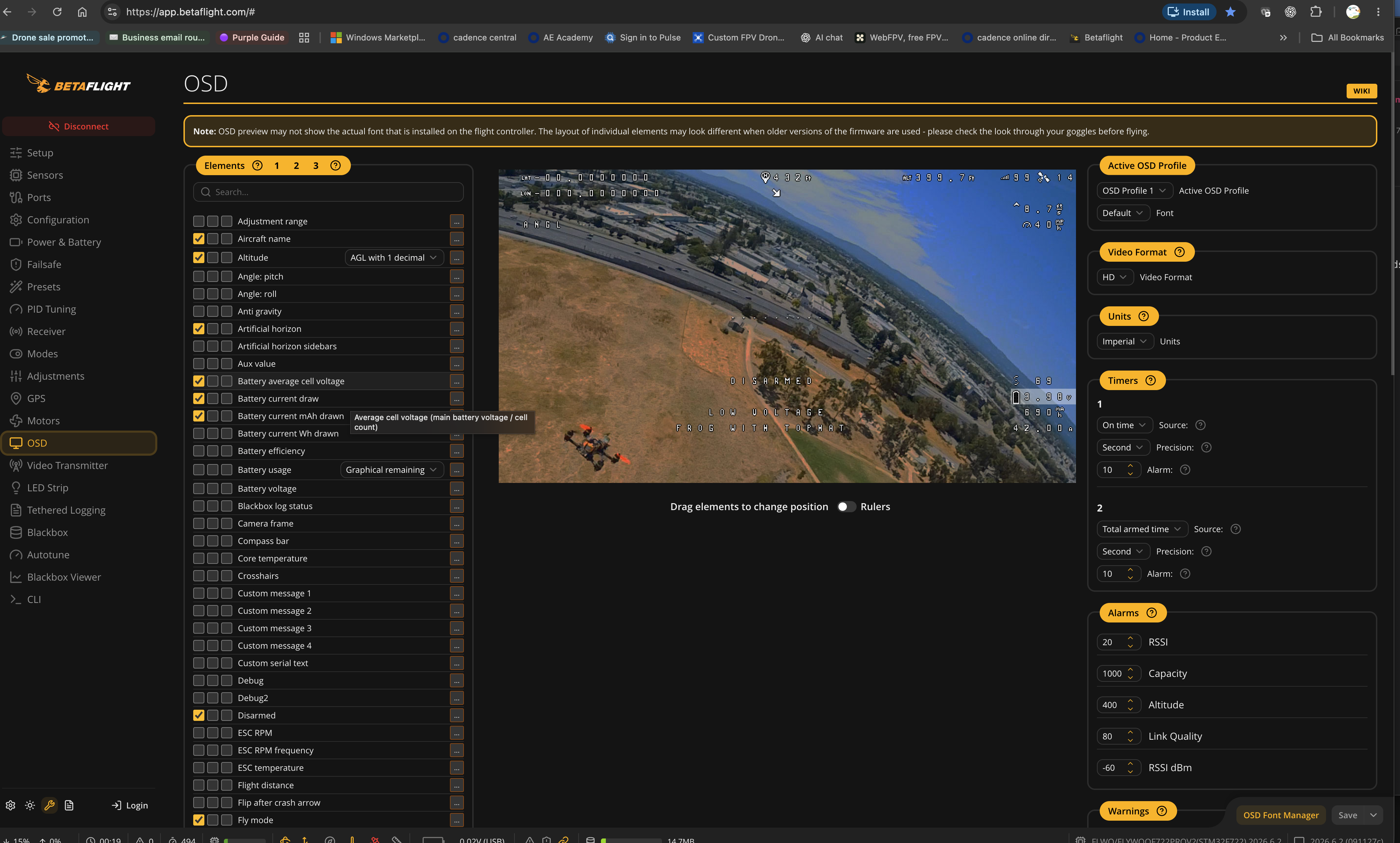
The supplied Top Hat screenshot shows OSD Profile 1, HD video format and Imperial units. Its scenery, telemetry and alarms are editor examples, not verified flight readings or recommended limits.
- Remove props, connect to Betaflight and save a backup. Open OSD. Keep the working video configuration; menu wording depends on firmware and app version.
- Select the active profile you intend to use. In this example it is Profile 1. The three checkbox columns beside Elements correspond to the three OSD profiles.
- Enable an item in the intended profile's column, then drag its preview text to the desired location. Leave the center of the image clear and keep important readings away from cropped screen edges.
- Use HD for the working digital DisplayPort layout shown here. Select Imperial or your preferred units deliberately; this changes how supported readings are displayed.
- Keep warnings, battery average cell voltage, a useful timer and supported ELRS link information visible. Add GPS satellites, home direction/distance and flight mode when configured and useful. Current and mAh readings need a working, calibrated current sensor.
- Click Save. Reconnect and confirm the layout remains. With props still off, power the video system as needed, cool the air unit and check through the goggles. The actual font and available screen area can differ from the editor.
Do not copy screenshot alarm values. Set battery, capacity, timer and link alerts for the real pack, radio mode and validated setup. Moving an item does not change its warning threshold.
6. Make the display useful in flight
A simple layout: put battery and timer in one lower corner, radio-link information in another, and GPS/home information along an upper edge. Keep the Warnings element prominent and leave room for its longer messages. This is a layout suggestion, not a required template.
Profile 1 is a sensible place to start if it is the profile you already fly. If a switch changes OSD profiles, confirm which one is active before rearranging items. Keep a screenshot of a layout you like so it is easy to restore.
Battery: learn the normal voltage behavior of your approved pack and land with a sensible reserve. Do not wait for a timer alone to tell you to land. An mAh or battery-usage display is only as useful as its sensor calibration and capacity setup.
Radio: learn the meaning of the ELRS link metric you display for the packet rate and RF setup you use. Do not treat a percentage, RSSI dBm value or a copied alarm setting as a universal range guarantee.
GPS: home arrows and distance require valid GPS data and a correctly established home position. Their presence on the editor canvas does not establish a fix or prove Rescue is ready.
Video but no OSD? First verify the active profile and that its elements are enabled. If all elements are missing, check the existing MSP DisplayPort configuration, the actual air-unit UART wiring and goggles settings against the installed hardware documentation. Preserve the working port settings; do not enable MSP on random UARTs. If items are cut off, move them inward and check again in the goggles.
Warnings: investigate the cause rather than hiding the warning. The screenshot's LOW VOLTAGE and DISARMED labels are preview examples; live warnings must be assessed on the actual aircraft.


7. First flight and shutdown
Practice control and immediate disarm in a simulator before flying. Choose an open area with people and obstacles well clear. Know your selected mode: Acro does not level itself when you release the sticks. Angle mode is only available if correctly configured; neither mode guarantees position hold.
- With power off, check prop direction and fastening, battery restraint, leads, antennas and camera view. Verify the correct radio model and ARM off.
- Turn on radio, goggles, then aircraft. Set the quad down level and keep still during initialization. Verify live voltage, video and control link.
- Outdoors, wait for a valid GPS fix and the configured satellite requirement before using GPS features. Check home status. GPS hardware alone does not establish safe Rescue, position hold or automatic landing behavior.
- Make a short, close hover in a clear area, then land. GPS Rescue must be configured and progressively tested for this aircraft before relying on it; do not make it part of an unverified maiden flight.
- If it flips, shakes strongly, drifts unexpectedly or control/video becomes unreliable, land or disarm as appropriate immediately. Do not add throttle to fight a setup error.
- After landing, disarm, wait for props to stop, then unplug the aircraft before switching off goggles and radio. Allow hot parts to cool before handling.
Inspect motors, screws, props, wiring and the pack after the hover. Stop for unusual heat, smell, damage or looseness. Remove props again for any powered troubleshooting. Extend flights gradually after the checks pass.

8. Care, troubleshooting and setup record
Let packs cool before charging. Select the correct battery chemistry and cell count, follow the pack maker's charge rate, balance-charge under supervision and use storage charge when appropriate. Stop using swollen, damaged or suspect packs. Replace chipped, bent or cracked props.
Will not arm: read the exact arming-disable message. Check throttle low, ARM off before startup and correct mode assignment. USB/Configurator connection can intentionally prevent normal arming. Diagnose the reason instead of bypassing safeguards.
Flips on takeoff: disconnect power, remove props and recheck board orientation, motor order, actual rotation and prop placement.
No control: check radio model, receiver power, binding and Receiver-tab movement.
No video: check air-unit power, cooling, antennas, compatible goggles and pairing.
No GPS fix: move outdoors with a clear sky view, allow acquisition time and inspect power/wiring if it persists.
When asking for help, include the build name, firmware version, exact error, what changed and clear photos. Keep props removed while troubleshooting.
Your setup record
Approved 4S battery / capacity / connector: ______________________
Radio model / ARM / flight mode / BEEPER: ______________________
Firmware / target / dated backup: ______________________________
Props-out rotation physically checked / date: ____________________
Failsafe action / props-off verification: _________________________
OSD profile / units / battery and link alerts: ______________________
GPS Rescue configuration and separate test record: ______________