FLY GEAR SWAP / DRONE STARTER GUIDE
Sky Sasquatch
Volador II 6-inch / 6S / PROPS IN / DJI O4 / ELRS / GPS
Illustrated getting-started guide - revised 19 October 2026
Remove all propellers before powered bench setup or motor tests. Install propellers only with battery and USB disconnected.
1. Meet Sky Sasquatch
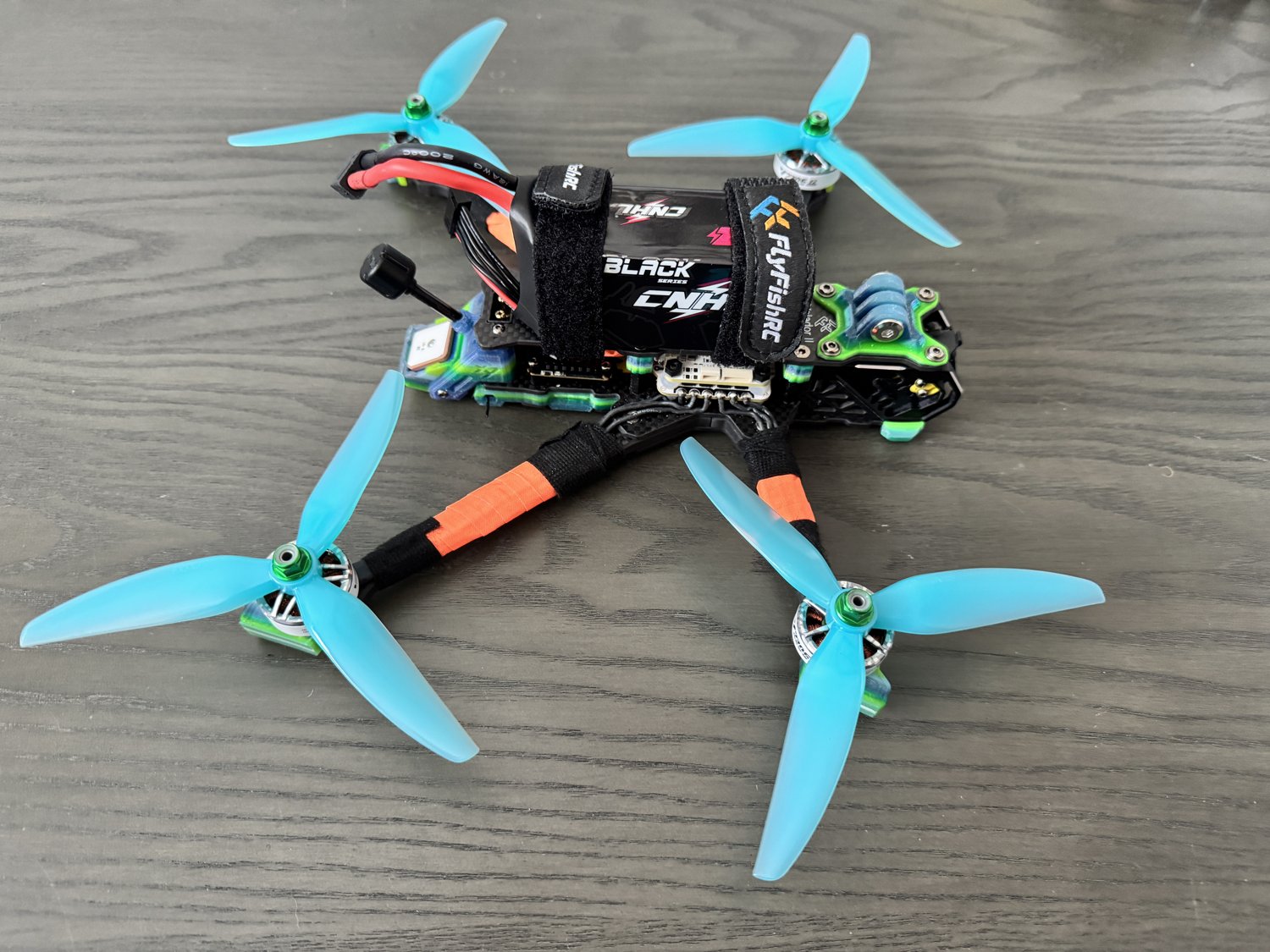
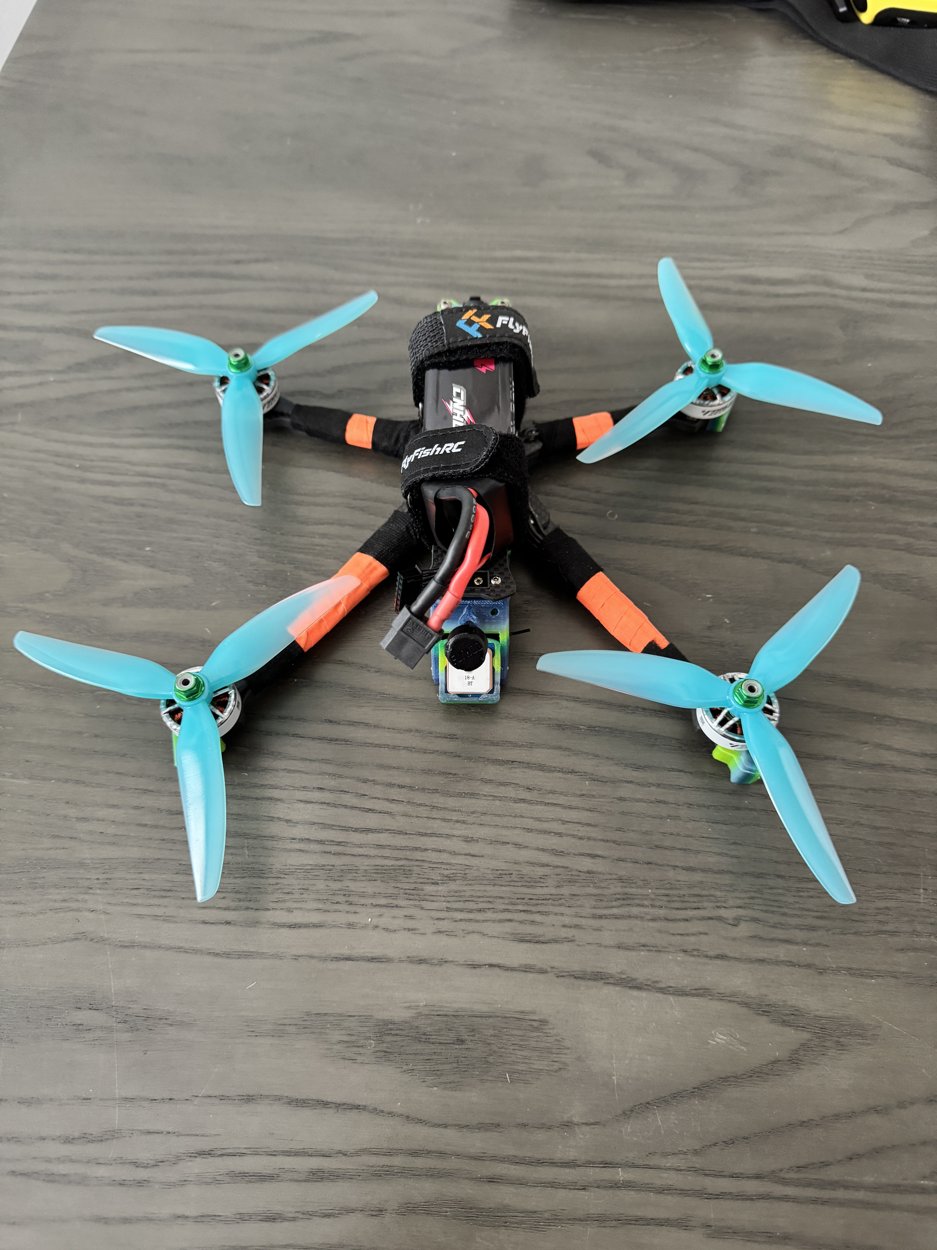
This is your Volador II 6-inch, 6S, props-in custom FPV aircraft. Michael has confirmed the props-in configuration for this build. Inspect the aircraft you received for any later changes. This large manual FPV quad needs an experienced pilot and plenty of clear space.
Build record: Volador II T700 carbon frame; Flywoo F722 flight controller; Flywoo 55A AM32 ESC; T-Hobby Velox 2306 1950KV motors; Flywoo DJI O4 Wide Pro video; ExpressLRS 2.4GHz receiver; 18mm M10 Pro GPS; custom TPU protection.
Have ready: a compatible 2.4GHz ELRS radio, DJI Goggles 3 or N3 as listed, an appropriate 6S LiPo and balance charger, a USB data cable, prop tools and a cooling fan. Confirm battery capacity, dimensions, connector and polarity with the supplied aircraft; the listing does not specify an approved capacity or exact prop pitch.
Props off for setup. The photographs show the assembled aircraft. Remove all four propellers before powering it for radio checks, configuration or motor tests.
2. Inspect, connect and preserve the setup
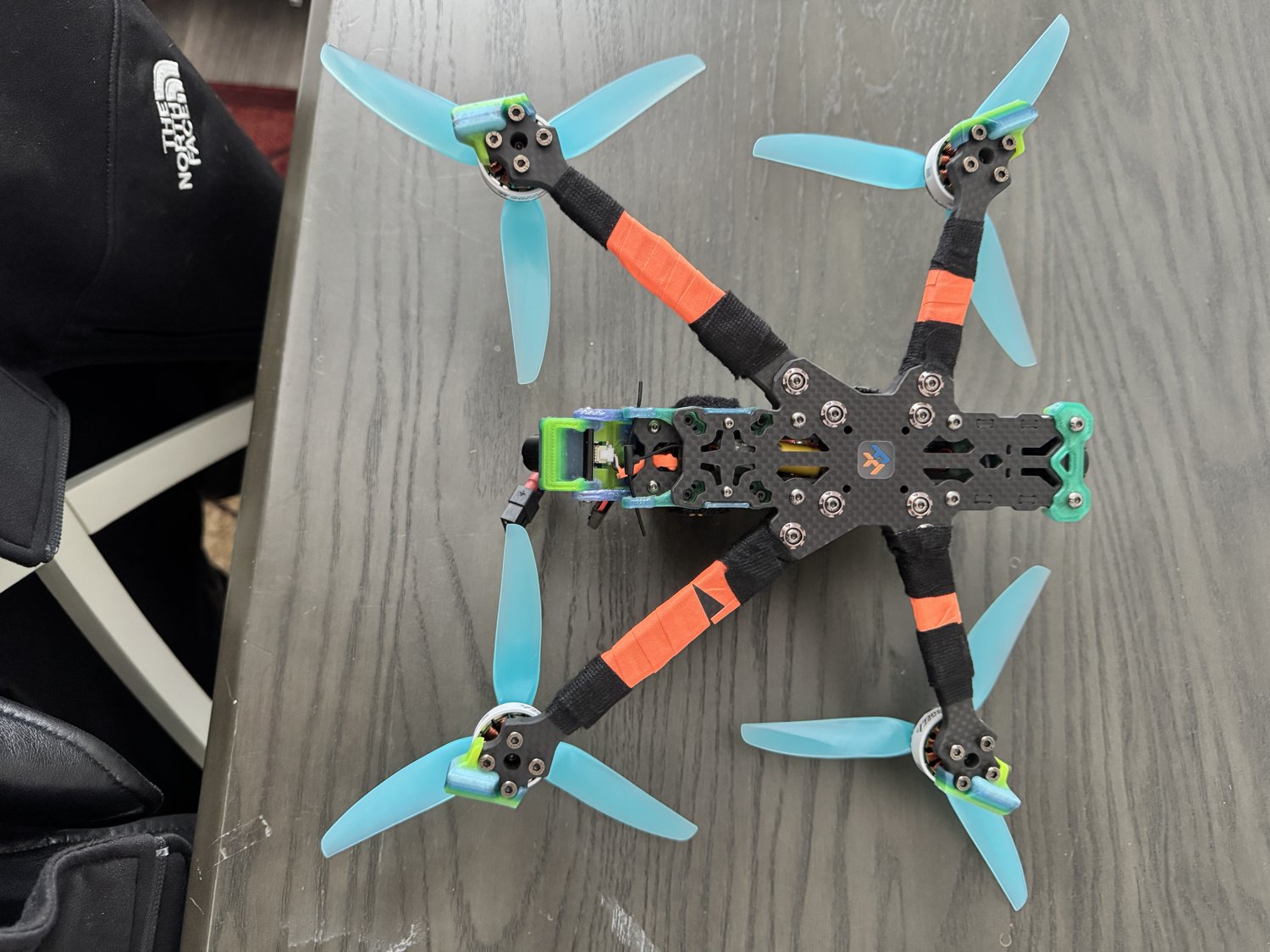
Power disconnected: check carbon arms and plates, loose screws, motor bearings, insulation, solder joints, antenna mounts and camera protection. Turn motors gently by hand; stop for rubbing, debris or damage. Check that screws do not contact motor windings.
Battery fit: use the listed 6S system, a sound pack and secure straps. Keep the main lead and balance lead outside every propeller arc. Never infer the complete aircraft voltage rating from a capacitor or ESC label.
Connect: with props removed, plug a data-capable USB cable into the flight controller, open a compatible Betaflight App/Configurator and select its port. A charge-only cable will not work. USB may not power the receiver or video unit.
Back up first: record the installed firmware and exact FC target, save CLI diff all to a dated file, and capture Ports, Receiver, Modes, Motors and OSD settings. Preserve the supplied tune. Do not flash firmware or paste another aircraft's dump just to get started.
Orientation: move the aircraft by hand and confirm the on-screen model follows its roll, pitch and yaw. Resolve any disagreement before powered motor checks.
3. ELRS control and DJI video
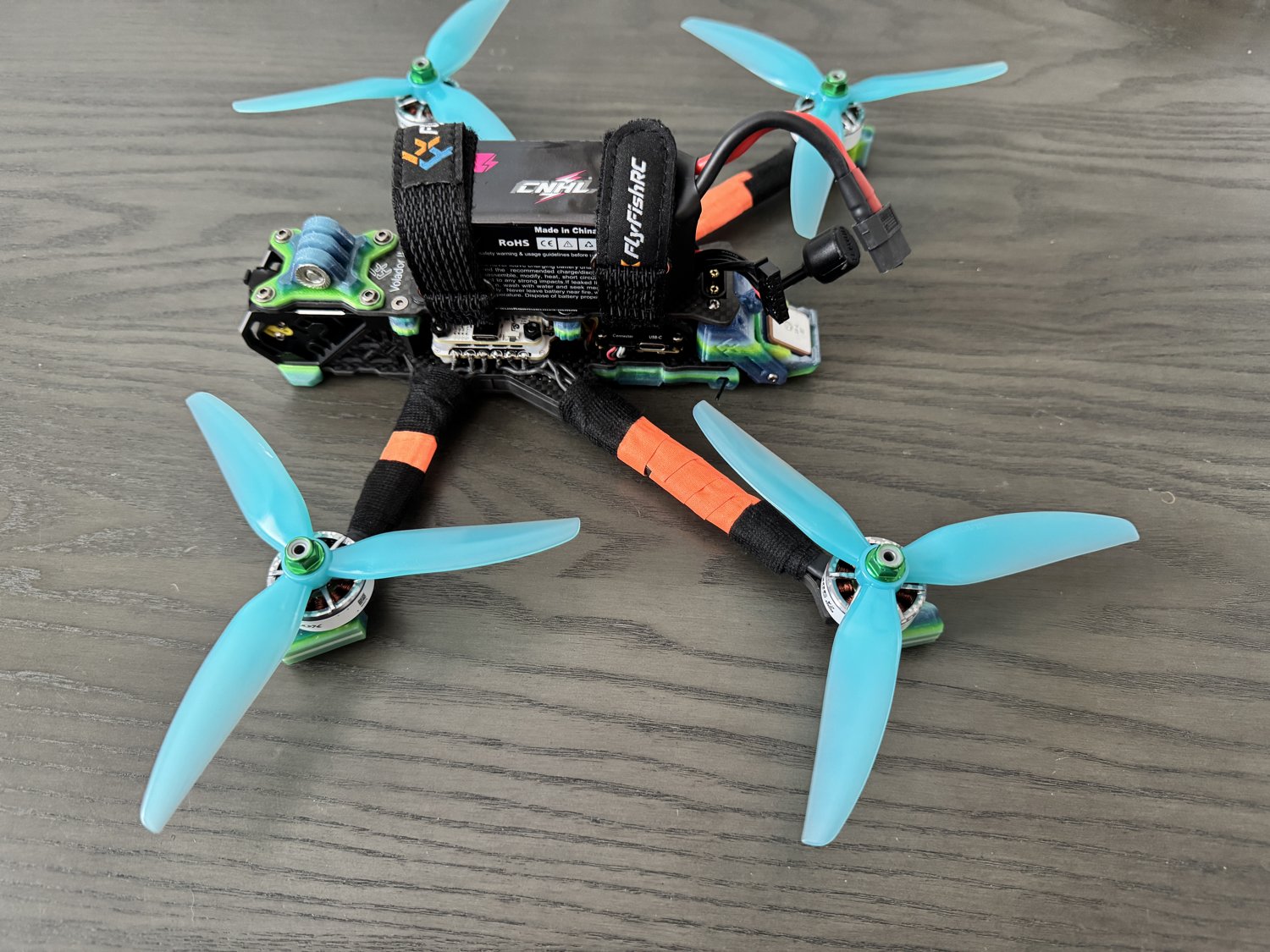
Two separate links: ELRS controls this aircraft; DJI carries the video. A clear image in the goggles does not prove the radio works. The optional SBUS cable does not mean DJI controller support is configured.
Power-up order: radio first, goggles second, aircraft last. Select the correct radio model, lower throttle and leave ARM off. Keep the quad level and still while it starts. During bench work keep props off and a fan blowing over the air unit.
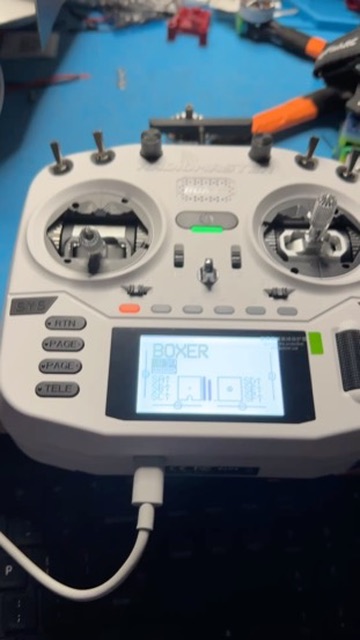
Binding: preserve an existing working ELRS bind. If binding is needed, identify the exact receiver and transmitter/module firmware and follow their matching ELRS procedure. Do not flash a guessed target. A binding phrase is private; do not publish it in your setup record.
Receiver check: move one stick at a time in Betaflight and confirm the correct roll, pitch, yaw and throttle channels respond in the correct direction. Resolve missing or reversed channels. A UART ELRS receiver normally uses CRSF; retain the verified UART assignment rather than guessing a port.
Switch check: in Modes, verify ARM and every assigned flight-mode switch. Check BEEPER only if the installed setup supports it. Practice disarming without looking down. Record your actual switch assignments.
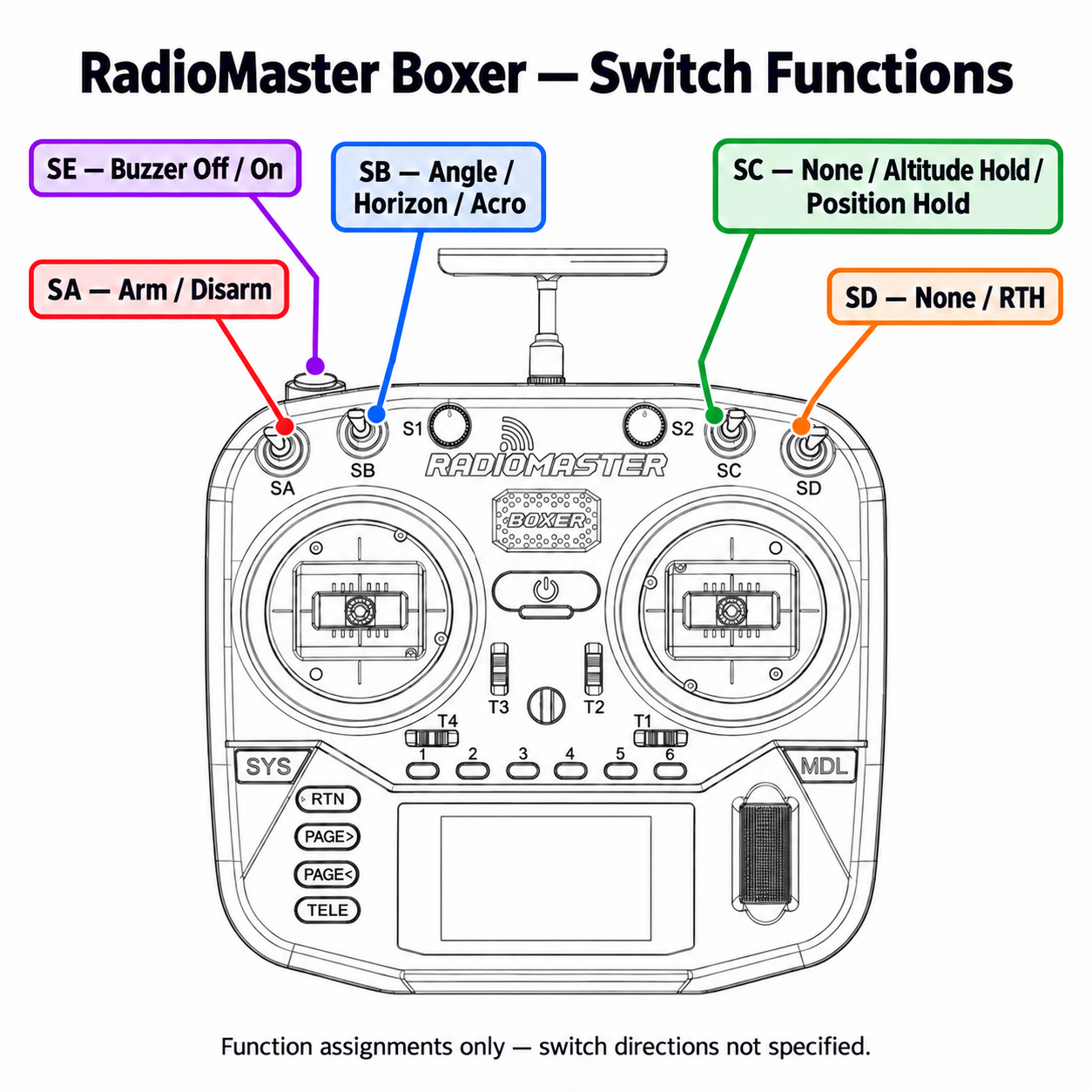
Video check: use DJI's instructions for your exact goggles and O4 system if activation or linking is needed. Confirm live video and OSD, cool the air unit and disconnect promptly when finished.
4. Props-in: read the picture
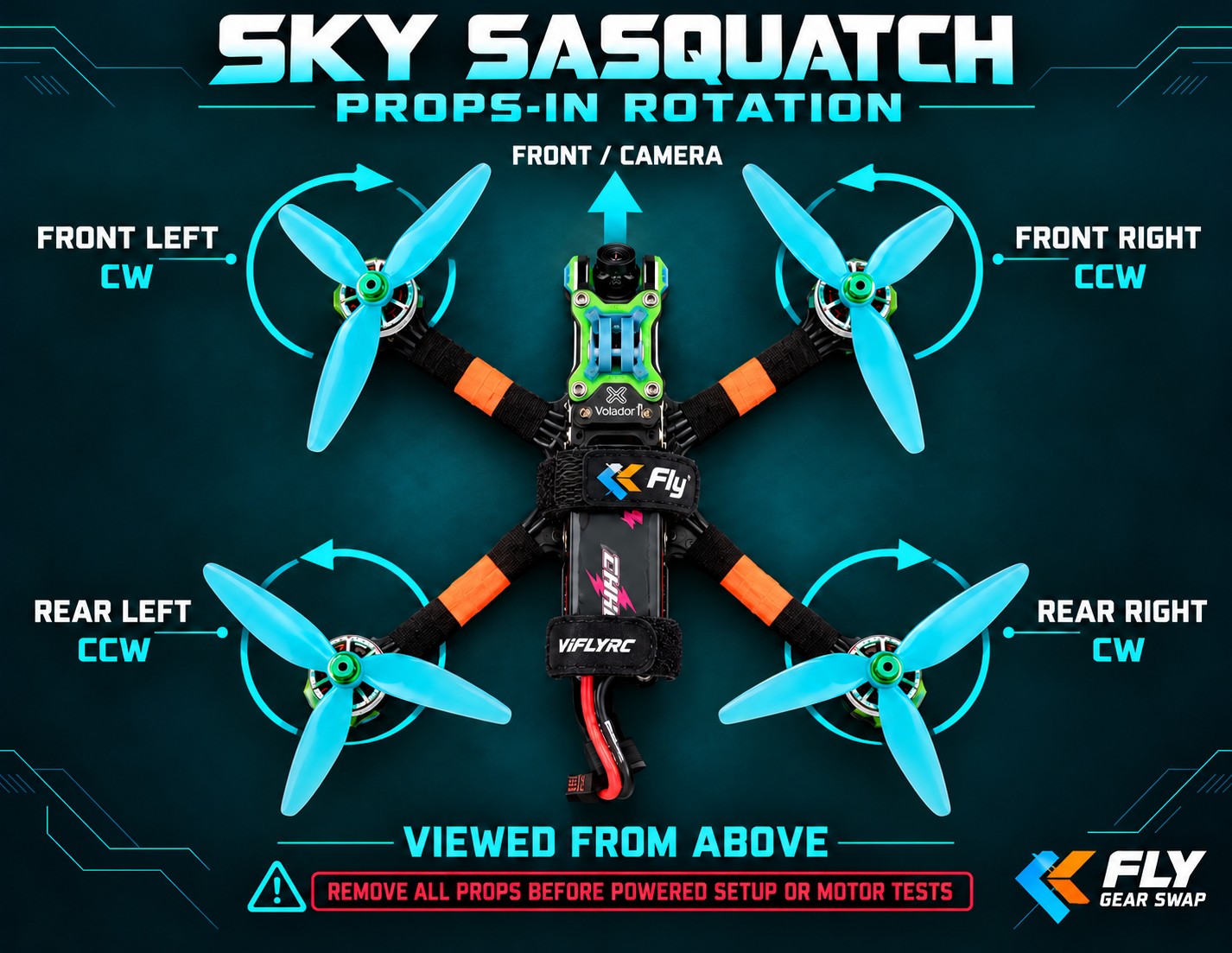
View from above, camera pointing away from you. Front left turns clockwise (CW); front right counterclockwise (CCW); rear left CCW; rear right CW. At the forward edge, the front pair sweep inward toward the camera.
The illustration is based on this drone's photo and turns its nose to the top of the page. It is an orientation aid, not a measurement or proof of motor operation. Always check actual bare-motor rotation.
Four things must agree: motor order, physical motor direction, Betaflight's expected rotation pattern and the propeller fitted at each corner. The next page separates powered checks from prop installation.
5. Verify rotation, then install propellers
A. Powered checks - ALL PROPS REMOVED
1. Confirm motor order using the installed Betaflight motor diagram and test tool. Each numbered output must drive the physical corner shown by the software. Do not infer motor numbers from this guide's picture.
2. For standard props-in, Motor direction is reversed should be off (wording varies by version). This sets the mixer's expectation; toggling it alone does not physically reverse a motor.
3. Follow the motor-test safety prompts, connect the appropriate battery and run one bare motor at a time at the lowest useful test speed. Observe a visible mark on the bell without touching it. Stop after each check. Match all four directions to page 4.
4. If a direction is wrong, use the supported motor-direction tool or the correct AM32 configuration workflow for the installed ESC. Do not flash guessed ESC firmware. Recheck every corner after any change. Preserve known working protocol, filtering and tune settings.
B. Installation - BATTERY AND USB DISCONNECTED
5. Match the replacement prop's size, pitch, hub and handedness to the builder-approved prop. The frame size alone does not specify a replacement prop. Use the supplied spares as the reference and ask before changing load.
6. Fit the CW/CCW prop appropriate to each motor. Its raised leading edge must lead into the rotation, with the prop oriented to push air downward. Flipping a wrong-handed prop upside down does not fix it. Do not use color as a direction code.
7. Secure the proper prop hardware, then rotate each prop by hand with power disconnected. Check clearance from TPU, camera, GPS, antennas, straps and leads. Replace cracked or bent props.
Unexpected flip at takeoff? Disarm immediately. Disconnect, remove props and recheck motor order, rotation, prop placement and FC orientation before another attempt.
6. Make the OSD useful
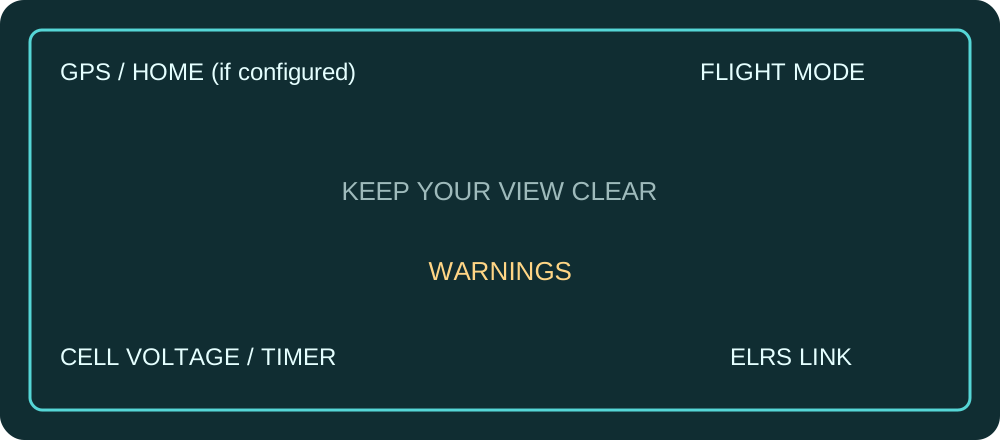
Keep the working video configuration. With props removed, connect to Betaflight and open OSD. Choose the profile you actually fly. Enable desired elements in that profile, drag them in the preview, select your units and save. HD is the digital DisplayPort layout; verify the installed system's working setting.
Keep visible: Warnings, battery average cell voltage, a useful timer and supported ELRS link information. Add flight mode, GPS satellites and home information if configured. Keep the center clear and move critical text away from cropped edges.
Verify in the goggles: power and cool the video system as needed, still with props off. Confirm items appear and update. If video is present but telemetry is absent, inspect the existing DisplayPort/port configuration rather than replacing it with another drone's settings.
Alerts are separate from placement. Use thresholds appropriate to the actual battery, receiver mode and validated setup. Do not copy example numbers from screenshots. Current and consumed mAh readings require a working, calibrated sensor.
No live telemetry is illustrated here. The layout below is a planning sketch, not a Sasquatch screenshot or recommended alarm values.
7. GPS, failsafe and the first hover
GPS is installed; Rescue is not guaranteed ready. Outdoors under open sky, wait for a valid fix and the configured satellite requirement. Confirm home status. This guide does not prescribe a satellite count, Rescue altitude or failsafe action for an uninspected firmware configuration.
Before flight: understand the configured radio-loss response and verify it with props removed using the procedure for your installed version. GPS Rescue needs its own configuration and controlled flight testing before relying on it. Do not turn off the transmitter in flight as a first test.
Know the mode: Acro does not self-level when sticks are released. GPS hardware does not provide DJI-style position hold or automatic obstacle avoidance. Simulator practice and smaller-quad experience are strongly recommended for a 6-inch 6S build.
First-flight checklist: choose a suitable open area; keep people and obstacles clear; check props and hardware; strap the correct pack securely; secure both leads; verify model, switches, live video, battery information, control link and GPS status as required by your configuration.
Brief hover: place the aircraft level with the nose away. Clear the area, arm and lift gently into a short hover. Land and disarm. If it flips, oscillates strongly or behaves unexpectedly, disarm immediately.
After landing: disarm, disconnect the aircraft battery, then turn off goggles and radio. Check motors, battery and electronics for abnormal heat, damage or looseness before continuing.
8. Care, troubleshooting and setup record
Batteries: let packs cool before charging. Balance charge with the correct chemistry, cell count and pack-maker charge rate, under supervision on a suitable nonflammable surface. Use storage charge when not flying soon. Stop using swollen, damaged or overheated packs.
Will not arm: read the exact arming-disable message and correct its cause. USB/MSP connection, throttle position, switches, receiver link or configured GPS requirements can inhibit arming. Do not bypass protections just to make it arm.
No control: check the selected radio model, receiver power, ELRS link and channel response. No video: check air-unit power, antennas, cooling, goggles compatibility and link. No GPS fix: move into open sky, check hardware and allow acquisition time.
After a crash: disarm and disconnect before handling propellers. Inspect the battery, frame, motors, connectors and antennas. Replace damaged parts before flying.
Your setup record
Battery capacity / connector: __________________________________
Approved prop size / pitch / model: _____________________________
Radio model / ARM switch / modes: _____________________________
Firmware / target / dated backup: ______________________________
Props-in actual rotation checked / date: ________________________
Failsafe action / props-off check: ______________________________
OSD profile / units / alerts: ___________________________________
GPS Rescue configuration / separate test record: _________________
Need help? Tell Fly Gear Swap the build name, firmware, exact warning and what changed. Keep propellers off during powered troubleshooting. Visit the Forum for continued setup support.
9. References and your next flight
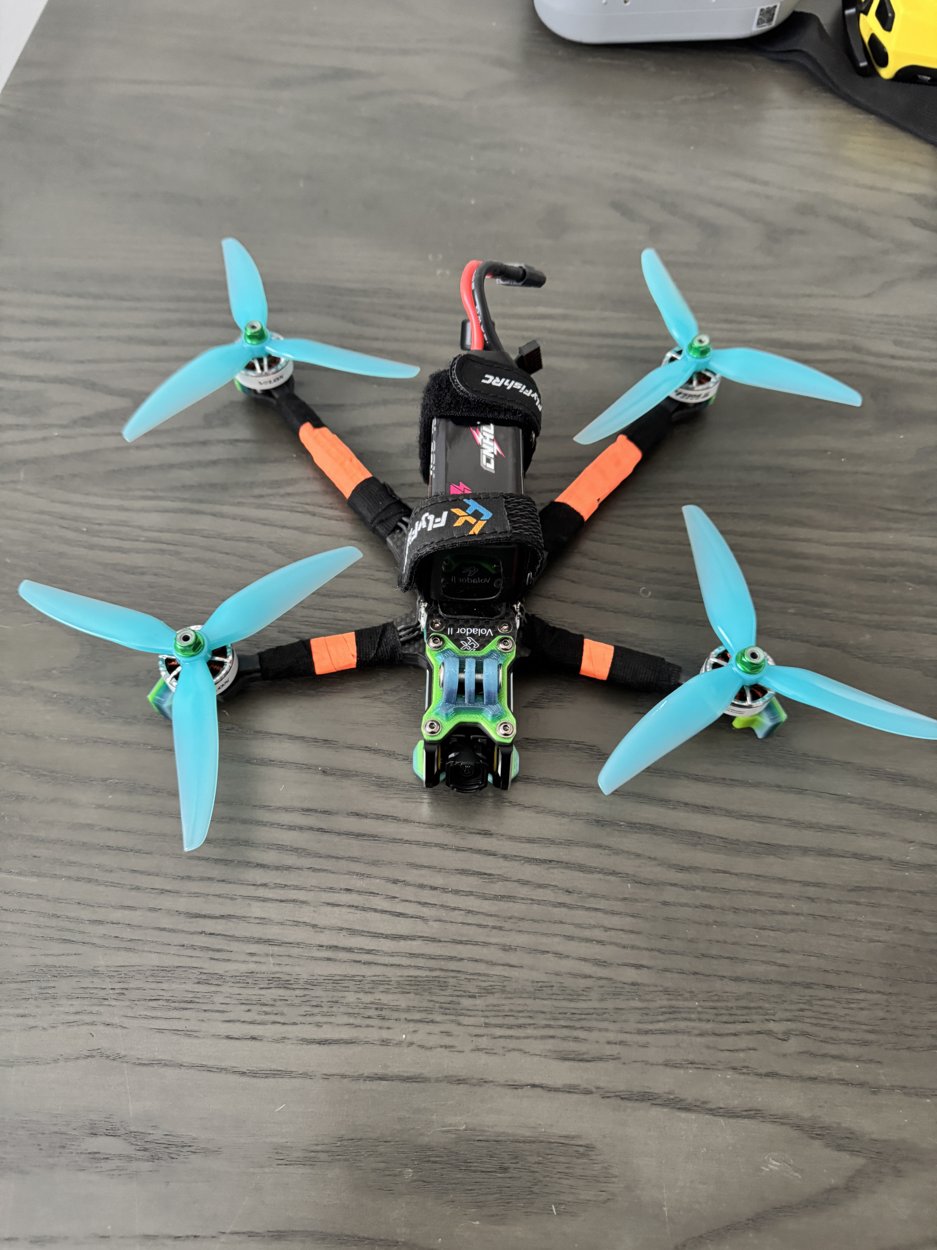
Build facts and all five original photographs come from the Sky Sasquatch listing. Props-in is confirmed by Michael. Exact battery capacity, prop pitch, receiver model, UART assignments, firmware version and Rescue settings are not documented in that listing; record them from the delivered aircraft.
This guide preserves the original startup coverage and adds photos, props-in instruction, OSD planning and a printable setup record. The photo-based instructional artwork is AI-assisted; use the written rotation checks and real aircraft as your authority.
Before every flight: inspect, secure the battery and leads, check radio and goggles, confirm modes and warnings, clear the area, and be ready to disarm.
Keep flying with Fly Gear Swap. Find custom builds, real component lists and practical guides at fly-gear-swap.com.