Pearl Purple Getting Started Guide
TJRC 5-inch • 6S • DJI O4 Pro • ELRS • M10 Pro GPS
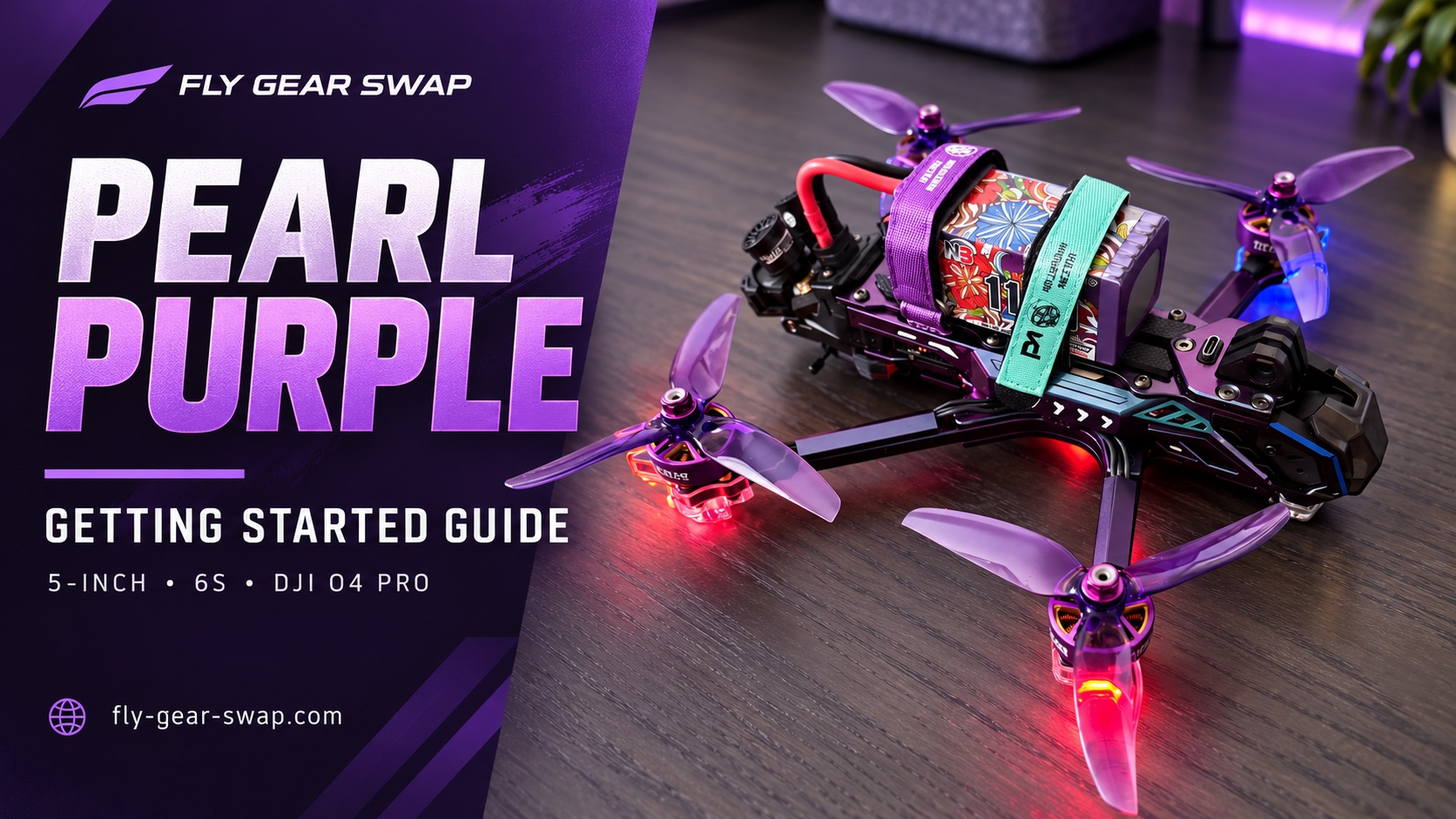
Pearl Purple Getting Started Guide
Your owner guide to the custom TJRC five-inch 6S FPV quad, also called the One-Eyed Flying Purple People Eater. Work through the bench checks with the propellers removed, then make a short, controlled first flight.

A powerful manual aircraft
This is an experienced-pilot freestyle build. The guide helps you check and understand it; simulator practice and competent hands-on help are appropriate if you have not flown a five-inch Acro quad. GPS installation alone does not make it a camera drone with automatic hovering.
Fly Gear Swap • 15 October 2026 • Read online or print this nine-page guide.
Know your build and equipment
The listing specifies the following hardware [1]. Keep this identity with your configuration backups so settings from another quad do not get mixed in.
- TJRC pearl-purple five-inch T700 carbon-fiber frame, custom TPU protection and GoPro mount.
- Flywoo F722 Pro flight controller with 55A AM32 ESC; VCI Titan 2306 1850KV motors.
- DJI O4 Pro video; SpeedyBee 2.4GHz ExpressLRS control receiver; M10 Pro GPS with shielded cable.
- Integrated frame and motor-area LEDs, with stubby video antennas.
Bring the right equipment
You need a compatible 2.4GHz ELRS radio or transmitter module, compatible DJI goggles, a suitable 6S LiPo, a balance charger, a USB data cable and the correct propeller tools. A GoPro is optional. The listing excludes the radio, goggles, battery, charger and GoPro unless separately arranged.
Choose battery capacity, dimensions, connector and discharge capability for the actual build. The listing does not establish a recommended capacity or measured flying weight. Check the fitted connector and polarity before buying or connecting a pack; do not guess from its color.

The listing mentions light waterproofing. Treat that as limited protection, not permission to fly in rain or immerse the aircraft.
Battery fitting and bench setup
Start unpowered
Disconnect the LiPo and USB. Remove all four props before binding, connecting Betaflight, motor tests or failsafe checks. Inspect the frame, motor screws, wiring, antenna mounts and GPS cable. A screw that is too long can damage motor windings; replace hardware only with the correct size.
Secure the battery
- Use a healthy, compatible 6S pack. Check its main lead, balance lead and connector for damage. Check polarity against the aircraft before connecting.
- Place the pack on its top support pad and secure both straps as shown in the reference photo. Pull gently in several directions to confirm it cannot slide.
- Route both leads well clear of the front and rear propeller arcs. Keep cables away from sharp carbon edges, and leave the video unit ventilated. Do not obstruct the GPS antenna with the pack or an action camera.
- Check balance and clearance with all intended accessories fitted. Recheck strap tension after handling and after the first short flight.
Charge and store correctly
Use the charger’s balance-charge mode for the pack’s actual chemistry and six-cell count. Follow the pack maker’s charge-current and voltage limits; do not select LiHV settings for an ordinary LiPo. Charge attended on a suitable nonflammable surface, away from combustible materials.
Do not charge a swollen, punctured, damaged or unusually hot pack. Let it cool after flying. Disconnect it from the quad when not flying and use the charger’s storage setting for storage. Establish battery warnings and a conservative timer from your actual pack and flight behavior.
Power sequence
Radio on with the correct model and arm switch off; goggles on; aircraft battery connected last. Use a fan during powered bench work. After flying: disarm, stop recording, disconnect the aircraft battery, then turn off the radio and goggles.
Set up the ELRS radio link
The SpeedyBee ELRS receiver carries flight controls. The DJI O4 Pro carries video. Pairing one does not pair the other.
Bind using your installed firmware
- Select a suitable radio model and its 2.4GHz ELRS transmitter/module. Verify that the TX and receiver firmware major versions match, such as 3.x with 3.x [4].
- Prefer an existing working bind or the same unique binding phrase on both devices. Supported Wi-Fi devices running ELRS 3.x can change the phrase through their Web UI.
- For traditional binding, use the procedure for the exact receiver and installed ELRS version. The official three-power-cycle method ends with the receiver powered on in a double-blink bind state; then select Bind in the radio’s ExpressLRS Lua script. Binding behavior changed with ELRS 3.4, so consult [4] rather than repeatedly cycling blindly.
- Keep props off. Confirm the receiver connects, then check stick and switch channel movement in Betaflight. A link light alone does not establish correct control.
Verify every control
Move roll, pitch, yaw and throttle separately in the Receiver tab. Each must move its named channel in the intended direction. Operate the arm and mode switches and confirm the corresponding AUX channels. Resolve reversed channels, incorrect mapping or a Model Match mismatch before arming.
Preserve the working receiver UART and serial configuration. ELRS serial receivers typically use CRSF; verify the actual wiring and board configuration before making changes. Do not switch this ELRS build to DJI SBUS just because its video system is DJI.
Owner record
Radio/model: _________________________________ ELRS TX/RX versions: __________________________ Arm switch and disarmed position: ______________ Mode switch positions: ________________________
Pair DJI O4 Pro video
Use goggles supported by the O4 series and compatible firmware. DJI lists Goggles 3, N3, Goggles 2 and Integra; the exact menu and linking control depend on the model [6]. This build uses its separate ELRS receiver for control.
Goggles 3 example
- Remove props, verify the video antennas are connected, and provide cooling. Power the goggles and aircraft. In the goggles, open Status and use the model-switching control to select O4 Air Unit Pro.
- Press the air unit’s linking button as directed by DJI; its red indicator should flash. Put the goggles into linking mode using their model-specific control.
- Wait for linking to complete and confirm a stable live camera image. For N3, Goggles 2 or Integra, follow the matching instructions rather than assuming the same button sequence [5].
Check the display before flight
Confirm the OSD shows useful battery and radio-link information, plus GPS status when configured. Check that the camera view is unobstructed. Keep powered bench sessions short, use a fan, and respond to temperature warnings. Leave ground low-power mode enabled where appropriate [6].
Recording and downloads
Check recording storage and free space before flying. Make a short test clip, stop it and confirm playback. The goggles’ DVR and the air unit’s onboard recording are separate. For footage transfer, connect to the O4 Pro’s USB port using a data cable or use its supported recording media; connecting only to the flight controller does not export O4 footage. Verify your copied clips before erasing them.
Detailed goggles walkthrough: fly-gear-swap.com/dji-goggles-3-n3-pairing-guide
Owner record
Goggles/model firmware: _______________________ Recording location/settings: ___________________
Props out motor and propeller directions
Read this as a TOP VIEW: you are above the quad, looking down, with the front camera pointing toward the top of the page. Left and right are the aircraft’s sides in that orientation. Do not apply these arrows while looking at the underside.
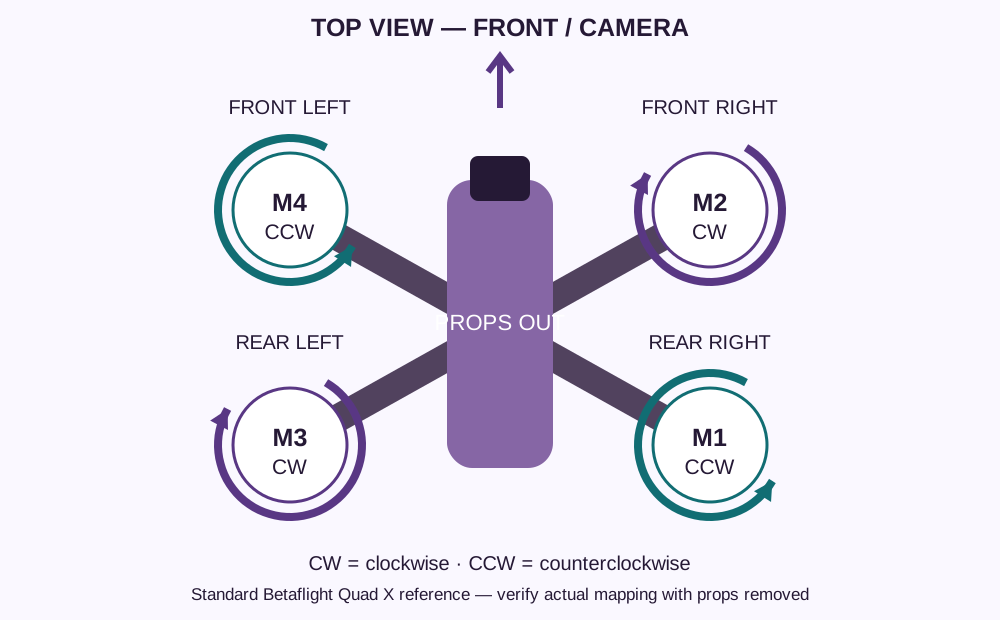
The diagram shows the requested props-out target for a standard Betaflight Quad X layout: front left counterclockwise, front right clockwise, rear left clockwise, rear right counterclockwise. Motor numbers are the standard reference; verify the actual output mapping [2, 3].
Three things must agree
1. The physical motor rotation. 2. Betaflight’s props-out/reversed mixer setting. 3. The correct handed prop on each motor. The mixer toggle alone does not reverse the ESCs. Check rotation with props removed, using the supported motor-direction tool or an AM32-compatible method.
Install the matching CW or CCW prop upright after unplugging the battery and USB. Follow the prop maker’s markings; do not turn a prop upside down to change its handedness. Its leading edge must advance into the air and produce downward thrust. Secure all props with correct hardware. Stop if anything disagrees.
Back up and verify Betaflight
Save the configuration first
Use an app compatible with the installed Betaflight firmware. In the CLI, run version and save the output, then run diff all and save that output as a text backup. Retain Ports, Receiver, Modes, Motors and Failsafe screenshots. These checks do not require flashing or resetting the controller [7].
Props off checks
- Tilt the quad and confirm the on-screen model follows the real movement. Resolve any board-orientation mismatch before testing flight.
- Verify all stick and switch channels. On the Modes tab, check the arm range, any prearm requirement, flight-mode ranges and Rescue switch assignment.
- Run brief, low-speed motor tests one at a time. Confirm output mapping and rotation against the top-view diagram. Use the actual configured motor numbering if it was remapped.
- Disconnect USB for a normal radio arming check, with props still off and the quad secure. Confirm the arm switch starts and immediately stops the motors. Keep the throttle low.
Know the modes
Acro is manual attitude control. Angle, if configured, self-levels attitude while you still control throttle and position. Do not assume altitude hold or position hold is configured. GPS Rescue is a separately configured recovery function, not a substitute for learning the controls.
Verify link loss safely
Review the selected failsafe action and its delays before a props-off link-loss check. Drop should stop motors after the configured delay; Rescue requires additional conditions and may behave differently. A bench check cannot prove Rescue will fly home. Follow the procedure for your installed firmware [9]. Never disable arming protections just to make a test pass.
Firmware/target: ______________________________ Receiver UART: ______ GPS UART: ______ Verified failsafe action: _______________________ Backup location: ______________________________
GPS and the first flight
Validate GPS Rescue separately
The listing specifies M10 Pro GPS, but Rescue must be independently configured and tested. Check reliable position and satellite reception outdoors with a clear sky view. Confirm a valid home point before relying on it; do not use an invented universal satellite threshold.
Use the installed firmware’s Rescue instructions to verify accelerometer leveling, climb and return settings, hover throttle, mode-switch assignment and failsafe behavior. Start controlled switch-initiated tests close by in an open area, with room to recover and the radio link available. Know how to cancel that test and regain control. Do not turn the radio off in flight to test Rescue [8].
An indoor GPS fix, a satellite count or a Rescue mode label does not establish dependable recovery. Do not begin a flight that depends on untested Rescue.
Make a short first flight
- Choose a legal open area away from people, animals and obstacles. Use a spotter where appropriate. Plan a close landing area and keep the first flight conservative.
- Inspect frame, props and antennas. Secure a suitable charged 6S pack with both leads clear. Power the correct radio model, goggles and then the aircraft. Confirm battery readings, control link, video and chosen flight mode.
- Stand clear, arm and lift into a low controlled hover. Make small movements, then land early. If it shakes, pulls unexpectedly or gives a warning, land and inspect. Disarm immediately after a crash or tip-over.
- After landing, disarm, stop recording and disconnect the aircraft battery. Inspect props, motor freedom, screws, TPU, wiring and straps. Let hot components and batteries cool.
Keep aggressive freestyle and action-camera loads for later flights, after the basic setup behaves predictably. Recheck balance and battery performance whenever you add accessories.
Quick checks troubleshooting and references
Before every pack
Frame/props intact • Motor and prop hardware secure • Both straps tight • Leads clear • Antennas and GPS secure • Correct radio model • Arm switch off • Suitable charged 6S pack • Stable video/OSD • Appropriate GPS/home status • Clear takeoff and landing area.
If something is wrong
- No control: check receiver power, selected radio model, binding, major-version compatibility and Model Match. Verify channel movement with props off.
- No video or overheating: check goggles model selection, pairing, antenna connections and cooling. Stop powered troubleshooting if the unit is hot.
- Flip or violent yaw at takeoff: disarm and unplug. Remove props and recheck motor order, actual rotation, reversed-mixer setting, prop placement and board orientation.
- Slow or unreliable GPS: move outdoors, keep the antenna exposed to the sky and inspect the mounting/cable. Do not copy unrelated GPS CLI settings or bypass Rescue checks.
- Will not arm: read the arming-disable warning and fix its cause. Do not defeat protections, and do not repeatedly arm an unexplained fault.
Source links
[3] Betaflight reversed motor directions
[5] DJI O4 linking instructions
[6] DJI O4 compatibility and cooling
Build facts and photos come from the aircraft listing. Battery capacity, exact receiver model, firmware version, UART assignments and switch map must be verified on the delivered aircraft.