Green Machine Getting Started Guide
Angel 3-inch • RP1 ExpressLRS 2.4GHz • DJI O4 • 3S / 4S
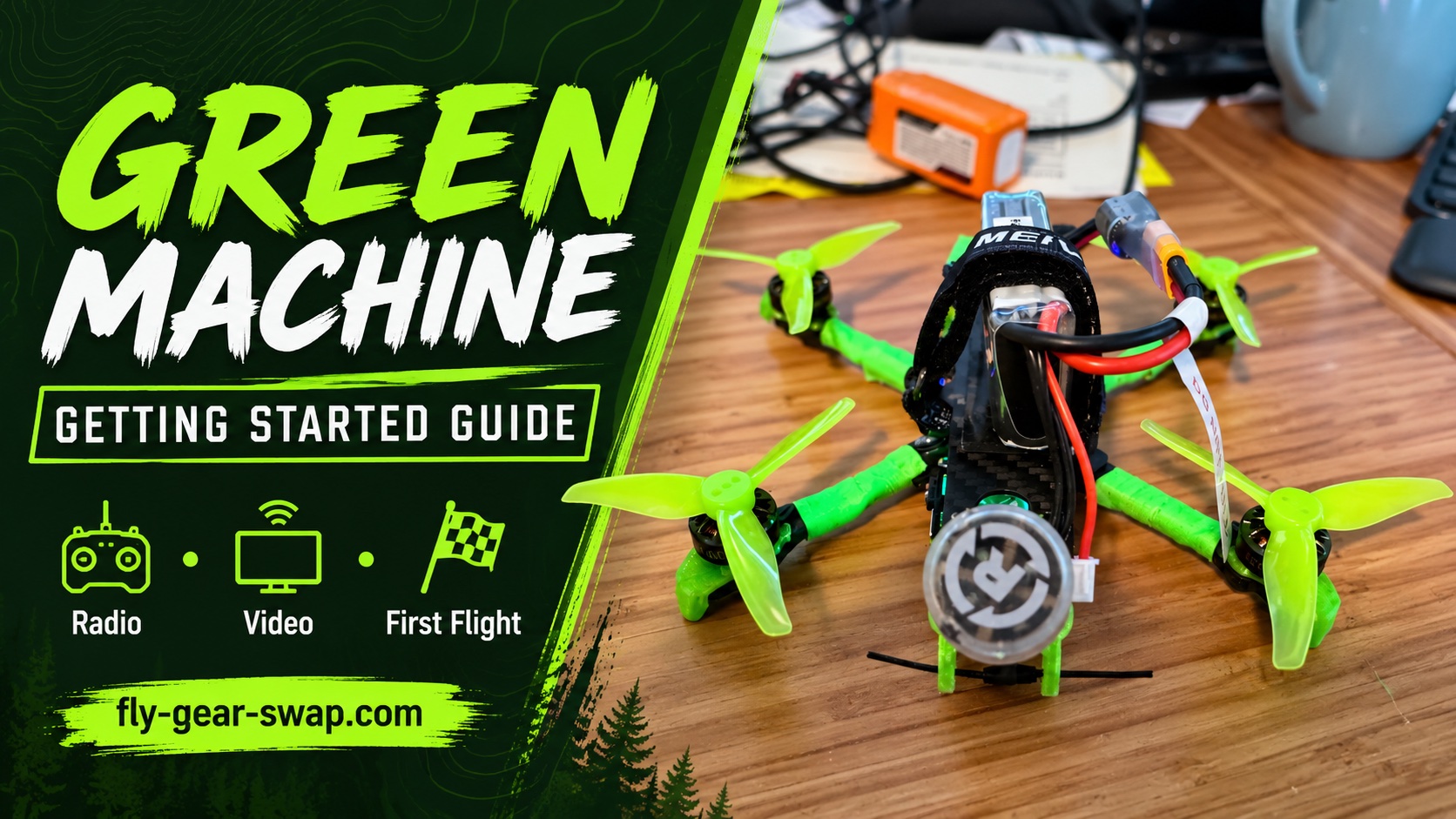
Green Machine Getting Started Guide
Meet your compact three-inch FPV quad. This guide takes you from an unpowered inspection through radio and video setup to a short first flight. Start with the propellers removed, confirm every control, and keep the existing working configuration backed up.

Your build
Angel 3-inch carbon-fiber frame • Luminier 35A AIO • Happymodel 1404 3500KV motors • DJI O4 video • RadioMaster RP1 ExpressLRS 2.4GHz receiver • green TPU parts • Foxeer Lollipop antenna.
The build is intended for 3S cruising and livelier 4S flying. Start gently. GPS functions are not part of this guide: do not expect return-to-home, position hold or GPS Rescue.
Fly Gear Swap • Owner guide • 13 October 2026
Before connecting a battery
Set up on a clear, nonconductive surface. Remove all four propellers before connecting to Betaflight, binding a receiver, checking motors or testing failsafe. Keep fingers, loose wires and tools away from motor bells.
What you need
- A radio with an ExpressLRS 2.4GHz transmitter or module, a suitable model profile and charged transmitter battery.
- Compatible DJI goggles, the correct charging equipment, a USB data cable, and a small fan for powered bench work.
- A suitable 3S or 4S LiPo that matches the fitted connector, polarity, available space and the build’s electrical limits. Battery, goggles, radio and charger are separate unless arranged with the seller.
Fit the pack
Inspect the battery lead and connector on the actual quad before choosing a pack. Place the battery on its support pad, secure the strap firmly and gently check that the pack cannot slide. Route the main lead and balance lead away from every propeller arc. Keep the camera view and video unit airflow clear. Never force mismatched connectors.
Charge and store with care
Use a balance charger set for the pack’s chemistry and cell count, following the battery maker’s charge limit. Charge attended on a suitable nonflammable surface. Do not charge a swollen, punctured, damaged or unusually hot pack. Let packs cool, and use the charger’s storage setting for longer storage.
Weight depends on the pack
Reference photos show 164.96 g dry and 217.38 g with the pictured 3S battery. The specified 4S 650 mAh setup was described as under 250 g. Weigh your complete flying setup, including any added accessories, and follow the rules where you fly.
Connect the RP1 radio link
The RP1 handles flight controls. DJI goggles handle video. A clear picture does not prove the radio can control the quad.
Binding checklist
- Select the correct radio model and enable its ELRS 2.4GHz module using the radio/module instructions.
- Check transmitter and receiver ExpressLRS versions. Their major version must match, for example 3.x with 3.x. Do not flash working equipment simply to get started.
- Use the same unique binding phrase on both devices. On supported ExpressLRS 3.x devices, the Wi-Fi Web UI can set the phrase. If you prefer traditional binding, follow the official instructions for your installed version; the procedure changed in 3.4.
- Keep props off and supply the receiver with the power its installation requires. Confirm the receiver connects, then check actual channel movement in Betaflight. A receiver light alone is not enough.
Binding reference: [1]. If the receiver appears linked but controls remain blocked, check Model Match and the selected model number [2].
Confirm the controls
In Betaflight’s Receiver tab, move one control at a time. Roll, pitch, yaw and throttle must move their named channels in the intended direction. Check the arm and mode switches too. Resolve any channel mapping or reversed-control problem before arming.
The RP1 normally uses CRSF for serial control. Preserve the working receiver port and wiring. Verify the actual board, connected UART and configuration before changing Ports or receiver settings.
Write down your setup
Radio and model: ______________________________ ELRS TX / RX versions: _________________________ Arm switch and disarmed position: _______________ Mode switch assignments: ______________________
Connect DJI video
Confirm the exact O4 unit and goggles model before changing firmware or choosing accessories. DJI lists Goggles 3, N3, Goggles 2 and Integra for the O4 series; compatible firmware and the correct aircraft selection matter [3].
Pair the goggles
- With propellers removed, verify the video antenna is attached. Power the goggles and select the appropriate O4 Air Unit model in their menu.
- Power the aircraft with its correctly fitted battery. Use a fan and keep the session brief. Follow the linking controls for your particular goggles and air unit in the linked pairing guide [6].
- Confirm a stable live camera view. Check the on-screen battery information and warnings before flying. Video pairing is separate from RP1 binding.
Keep ground low-power mode enabled where appropriate. Provide airflow and stop if the unit overheats; never cover it with the battery or padding [3].
Make a short recording check
Before relying on flight footage, confirm the recording destination and remaining space in the goggles. Start and stop a brief clip, then play it back. Aircraft recording and the goggles’ DVR are separate files and may have different quality.
For export, identify the exact O4 variant and follow its storage instructions. Stop recording before disconnecting power. Use a USB data cable for supported internal storage, or remove the recording card only from hardware that actually has one. Copy the files and check playback before deleting originals.
Owner record
Exact O4 model: ________________________________ Goggles model and firmware: ____________________ Recording location and settings: ________________
Check Betaflight before flying
Preserve the working setup
Connect with a Betaflight app version compatible with the installed firmware. Read the firmware version rather than assuming this quad uses a particular release. Save the existing configuration before making changes [4].
In the CLI, run version and retain the output. Then run diff all and save that output as a text file. These are inspection commands. Keep notes or screenshots of Ports, Receiver, Modes and Failsafe. Do not reset, flash or paste another aircraft’s settings into this build.
Check orientation and switches
With props still removed, tilt the quad gently and confirm the model in Betaflight follows the real orientation. Verify that each receiver channel moves correctly. On the Modes tab, operate your switches and watch which ranges activate.
Learn the arm switch by touch. Check the actual mode assigned to each switch position. If Angle mode is configured, it self-levels attitude; you still control throttle and position. Acro requires active attitude control. Practice in a simulator if either mode is unfamiliar.
Confirm motor and propeller direction
Before reinstalling props, confirm the motor layout, rotation and matching propeller direction for this particular configuration. Use brief, low-speed motor checks with props removed. Do not assume “props in” or “props out” from a photograph. Ask for help if the configured layout and physical response disagree.
Record the verified configuration
Flight controller model / target: __________________ Betaflight firmware: _____________________________ Receiver UART: __________________________________ Backup saved at: ________________________________ Angle / Acro switch positions: ____________________
Test disarm and failsafe
Perform this check on the bench with every propeller removed. It confirms that the aircraft stops its motors when commanded or when the control link is lost. Do not test radio loss in flight.
- Inspect the configured failsafe procedure. For this non-GPS setup, verify an appropriate Drop procedure; do not select GPS Rescue without a complete, independently validated GPS installation.
- Disconnect USB before a normal radio arming test. Place the quad securely, keep throttle low and power the radio before the aircraft. Arm briefly and confirm the arm switch immediately stops the motors when disarmed.
- For the link-loss check, follow Betaflight’s failsafe test procedure [5]. With props off, arm and simulate transmitter signal loss. Confirm the configured failsafe activates and stops the motors after its configured delay.
- Restore the link with the arm switch disarmed. Verify the motors do not restart unexpectedly. If the response differs from the intended configuration, unplug the battery and resolve it before flight.
Reinstall props only after checks pass
Disconnect the battery and USB. Install each propeller in the correct position and orientation, using the correct hardware. Check attachment, unobstructed rotation, frame fasteners, motor wires and antenna mounting.
A failed check means stop
Do not work around an arming warning by disabling protections. Read the warning in Betaflight or the OSD and correct its cause. A radio link, a video picture and a spinning motor are individual checks; all systems must work together before takeoff.
Your first flight and aftercare
Keep the first flight simple
- Choose a legal, open flying area with plenty of separation from people, animals and obstacles. Use a spotter where appropriate. Plan a clear landing area close by.
- Inspect the quad, secure a suitable charged pack, turn on the correct radio model and goggles, then connect the aircraft battery. Confirm video, controls, mode selection and sensible battery readings.
- Stand clear, arm and lift off gently. Make a short, low hover and small controlled movements. If it shakes, behaves unexpectedly or gives a warning, land and disarm. Disarm immediately after a crash or tip-over.
- Land early on this first pack. Learn the actual battery behavior before extending flight time. Use the pack’s limits and correctly configured warnings; do not rely on a universal timer or an invented voltage threshold.
Shut down and inspect
After landing, disarm and stop recording. Disconnect the aircraft battery before switching off the radio. Let the battery and video unit cool. Check props, motor freedom, screws, leads and TPU for damage or loosening before the next flight.
If something is wrong
- No control: verify the selected radio model, receiver power, binding, version compatibility and Model Match. Recheck channel movement with props off.
- No video: check goggles aircraft selection, pairing, unit power, antenna connection and temperature. Do not keep a hot unit powered while troubleshooting.
- Flip or strong vibration on takeoff: disarm, disconnect and remove props. Recheck motor order/direction, prop placement and board orientation before another attempt.
- Missing OSD: verify OSD options and the existing flight-controller video connection. Avoid randomly changing receiver and video UART settings.
Quick checklist and references
Before each flight
- Frame, props, fasteners, motors and antennas inspected.
- Correct pack, secure strap, leads clear of all propellers.
- Correct radio model, arm switch disarmed, chosen flight mode understood.
- Stable video, readable battery display, recording checked if wanted.
- Clear flying and landing area; radio and goggles batteries sufficient.
- After landing: disarm, stop recording, unplug aircraft, inspect and cool.
Before the first flight or after configuration changes
- Backup saved; orientation and every channel verified.
- Motor order, motor direction and prop orientation verified.
- Props-off disarm and failsafe checks passed.
References and further help
Use the instructions for your installed firmware and exact hardware. These links provide the detailed procedures behind this guide.
[3] DJI O4 compatibility and cooling
[6] Fly Gear Swap goggles pairing guide
Build details and photographs: Green Machine listing and Michael’s build notes. Visit fly-gear-swap.com for this guide and current listing information.