Page 1 text
FLY GEAR SWAP  /  DJI SIX-PIN CONTROLLER CONVERSION
1
FLY GEAR / WORKSHOP GUIDE 01
DJI controller conversion
The six-pin cable guide
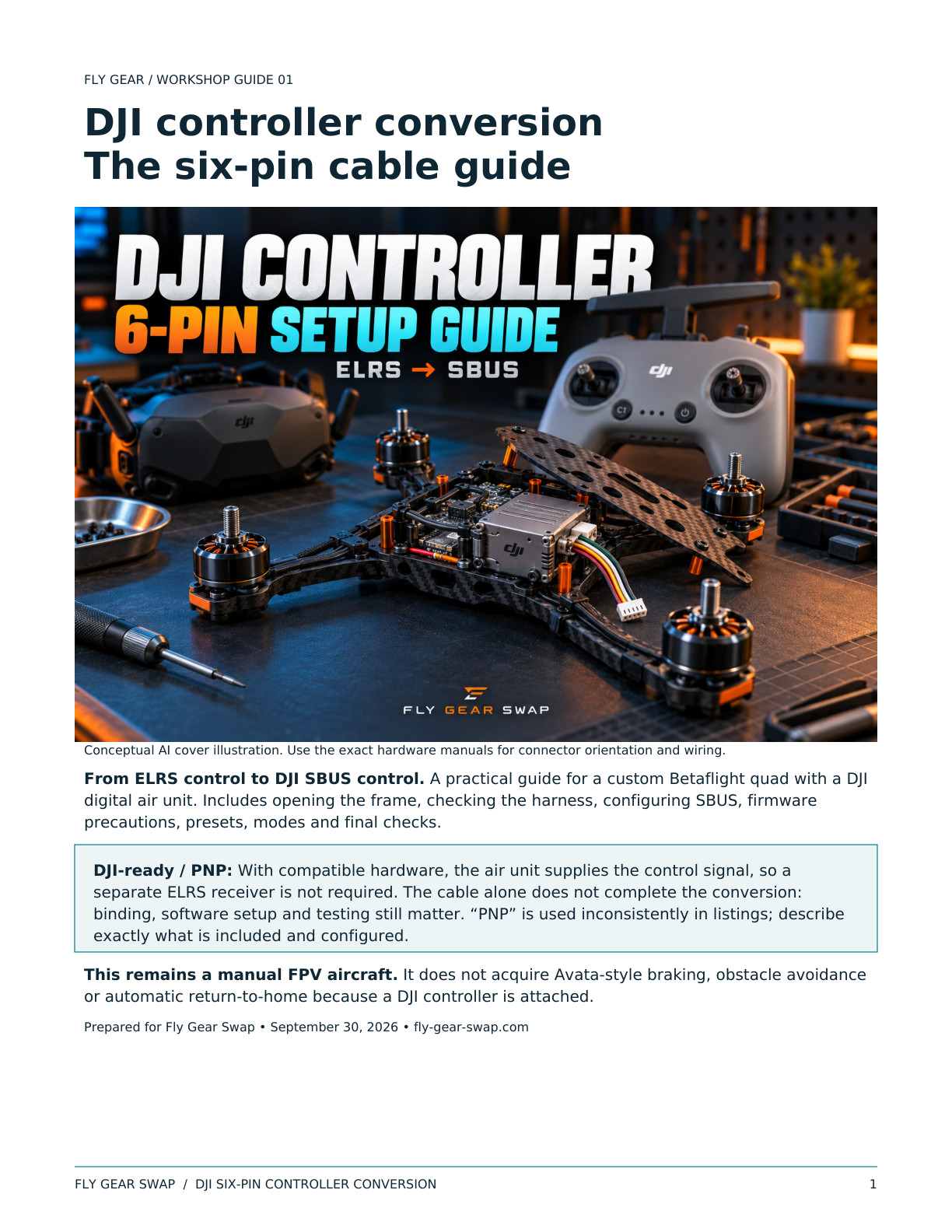
Conceptual AI cover illustration. Use the exact hardware manuals for connector orientation and wiring.
From ELRS control to DJI SBUS control. A practical guide for a custom Betaflight quad with a DJI
digital air unit. Includes opening the frame, checking the harness, configuring SBUS, firmware
precautions, presets, modes and final checks.
DJI-ready / PNP: With compatible hardware, the air unit supplies the control signal, so a
separate ELRS receiver is not required. The cable alone does not complete the conversion:
binding, software setup and testing still matter. “PNP” is used inconsistently in listings; describe
exactly what is included and configured.
This remains a manual FPV aircraft. It does not acquire Avata-style braking, obstacle avoidance
or automatic return-to-home because a DJI controller is attached.
Prepared for Fly Gear Swap • September 30, 2026 • fly-gear-swap.com
Page 2 text
FLY GEAR SWAP  /  DJI SIX-PIN CONTROLLER CONVERSION
2
FLY GEAR / WORKSHOP GUIDE 02
Confirm compatibility.
Save the original setup.
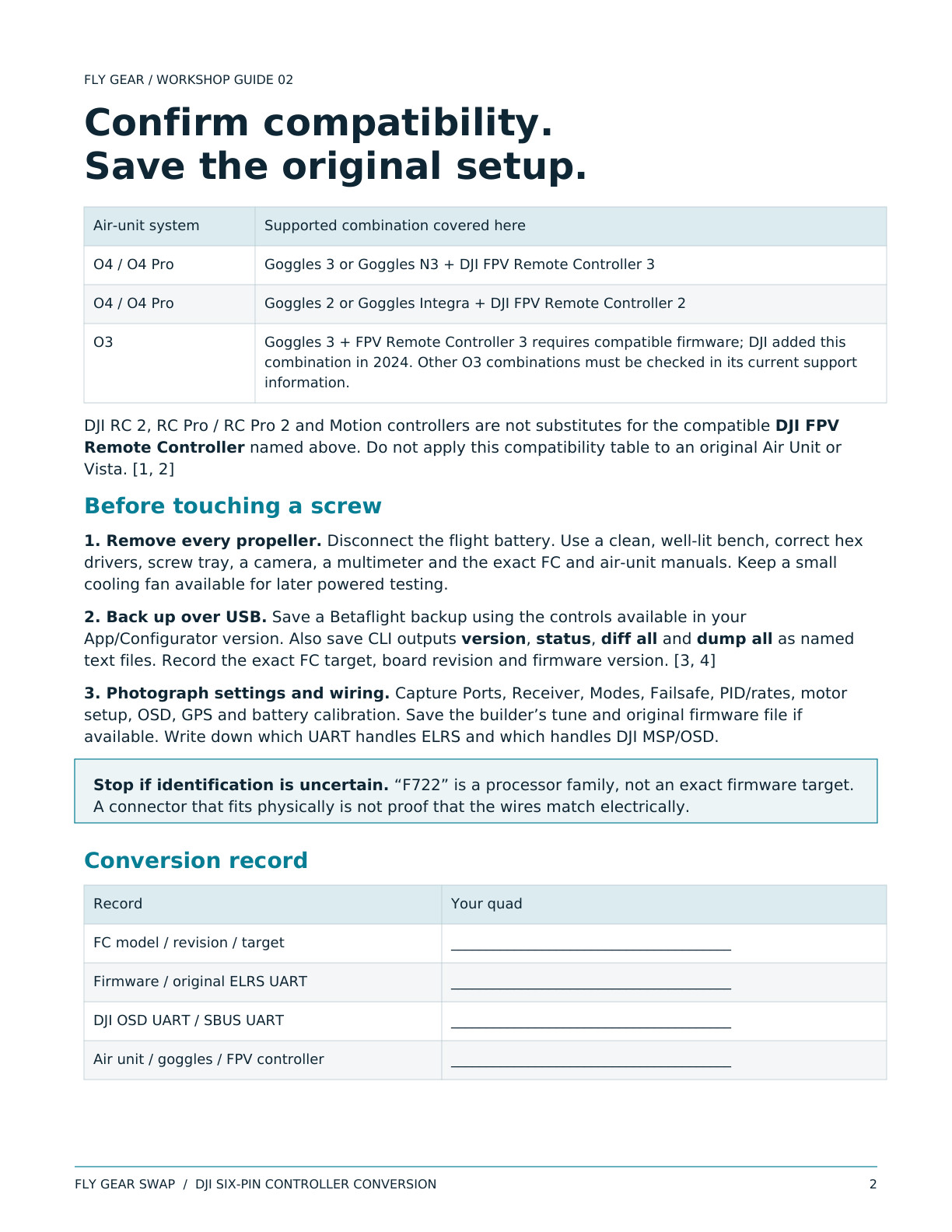
Air-unit system
Supported combination covered here
O4 / O4 Pro
Goggles 3 or Goggles N3 + DJI FPV Remote Controller 3
O4 / O4 Pro
Goggles 2 or Goggles Integra + DJI FPV Remote Controller 2
O3
Goggles 3 + FPV Remote Controller 3 requires compatible firmware; DJI added this
combination in 2024. Other O3 combinations must be checked in its current support
information.
DJI RC 2, RC Pro / RC Pro 2 and Motion controllers are not substitutes for the compatible DJI FPV
Remote Controller named above. Do not apply this compatibility table to an original Air Unit or
Vista. [1, 2]
Before touching a screw
1. Remove every propeller. Disconnect the flight battery. Use a clean, well-lit bench, correct hex
drivers, screw tray, a camera, a multimeter and the exact FC and air-unit manuals. Keep a small
cooling fan available for later powered testing.
2. Back up over USB. Save a Betaflight backup using the controls available in your
App/Configurator version. Also save CLI outputs version, status, diff all and dump all as named
text files. Record the exact FC target, board revision and firmware version. [3, 4]
3. Photograph settings and wiring. Capture Ports, Receiver, Modes, Failsafe, PID/rates, motor
setup, OSD, GPS and battery calibration. Save the builder’s tune and original firmware file if
available. Write down which UART handles ELRS and which handles DJI MSP/OSD.
Stop if identification is uncertain. “F722” is a processor family, not an exact firmware target.
A connector that fits physically is not proof that the wires match electrically.
Conversion record
Record
Your quad
FC model / revision / target
________________________________________
Firmware / original ELRS UART
________________________________________
DJI OSD UART / SBUS UART
________________________________________
Air unit / goggles / FPV controller
________________________________________
Page 3 text
FLY GEAR SWAP  /  DJI SIX-PIN CONTROLLER CONVERSION
3
FLY GEAR / WORKSHOP GUIDE 03
Open the frame and
replace the harness.
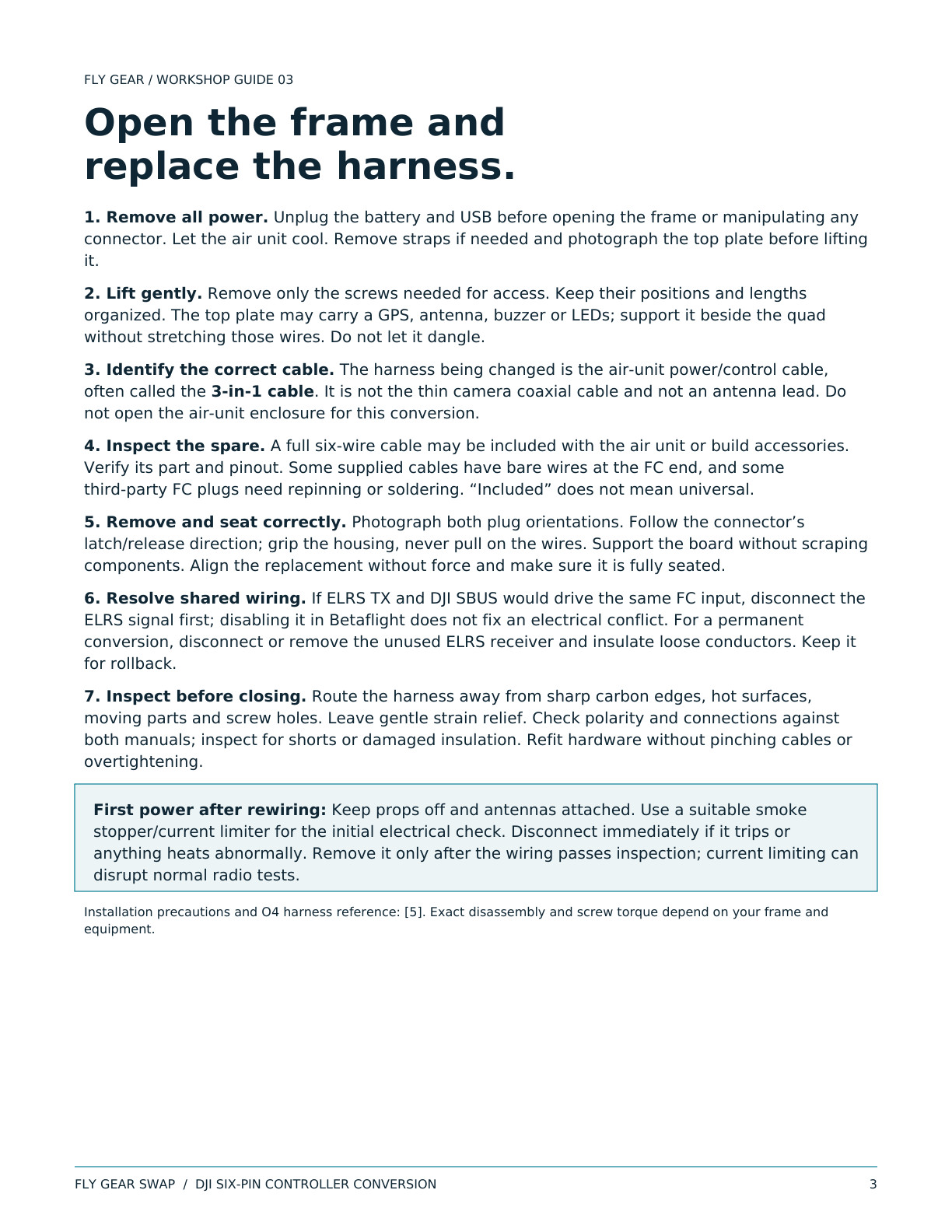
1. Remove all power. Unplug the battery and USB before opening the frame or manipulating any
connector. Let the air unit cool. Remove straps if needed and photograph the top plate before lifting
it.
2. Lift gently. Remove only the screws needed for access. Keep their positions and lengths
organized. The top plate may carry a GPS, antenna, buzzer or LEDs; support it beside the quad
without stretching those wires. Do not let it dangle.
3. Identify the correct cable. The harness being changed is the air-unit power/control cable,
often called the 3-in-1 cable. It is not the thin camera coaxial cable and not an antenna lead. Do
not open the air-unit enclosure for this conversion.
4. Inspect the spare. A full six-wire cable may be included with the air unit or build accessories.
Verify its part and pinout. Some supplied cables have bare wires at the FC end, and some
third-party FC plugs need repinning or soldering. “Included” does not mean universal.
5. Remove and seat correctly. Photograph both plug orientations. Follow the connector’s
latch/release direction; grip the housing, never pull on the wires. Support the board without scraping
components. Align the replacement without force and make sure it is fully seated.
6. Resolve shared wiring. If ELRS TX and DJI SBUS would drive the same FC input, disconnect the
ELRS signal first; disabling it in Betaflight does not fix an electrical conflict. For a permanent
conversion, disconnect or remove the unused ELRS receiver and insulate loose conductors. Keep it
for rollback.
7. Inspect before closing. Route the harness away from sharp carbon edges, hot surfaces,
moving parts and screw holes. Leave gentle strain relief. Check polarity and connections against
both manuals; inspect for shorts or damaged insulation. Refit hardware without pinching cables or
overtightening.
First power after rewiring: Keep props off and antennas attached. Use a suitable smoke
stopper/current limiter for the initial electrical check. Disconnect immediately if it trips or
anything heats abnormally. Remove it only after the wiring passes inspection; current limiting can
disrupt normal radio tests.
Installation precautions and O4 harness reference: [5]. Exact disassembly and screw torque depend on your frame and
equipment.
Page 4 text
FLY GEAR SWAP  /  DJI SIX-PIN CONTROLLER CONVERSION
4
FLY GEAR / WORKSHOP GUIDE 04
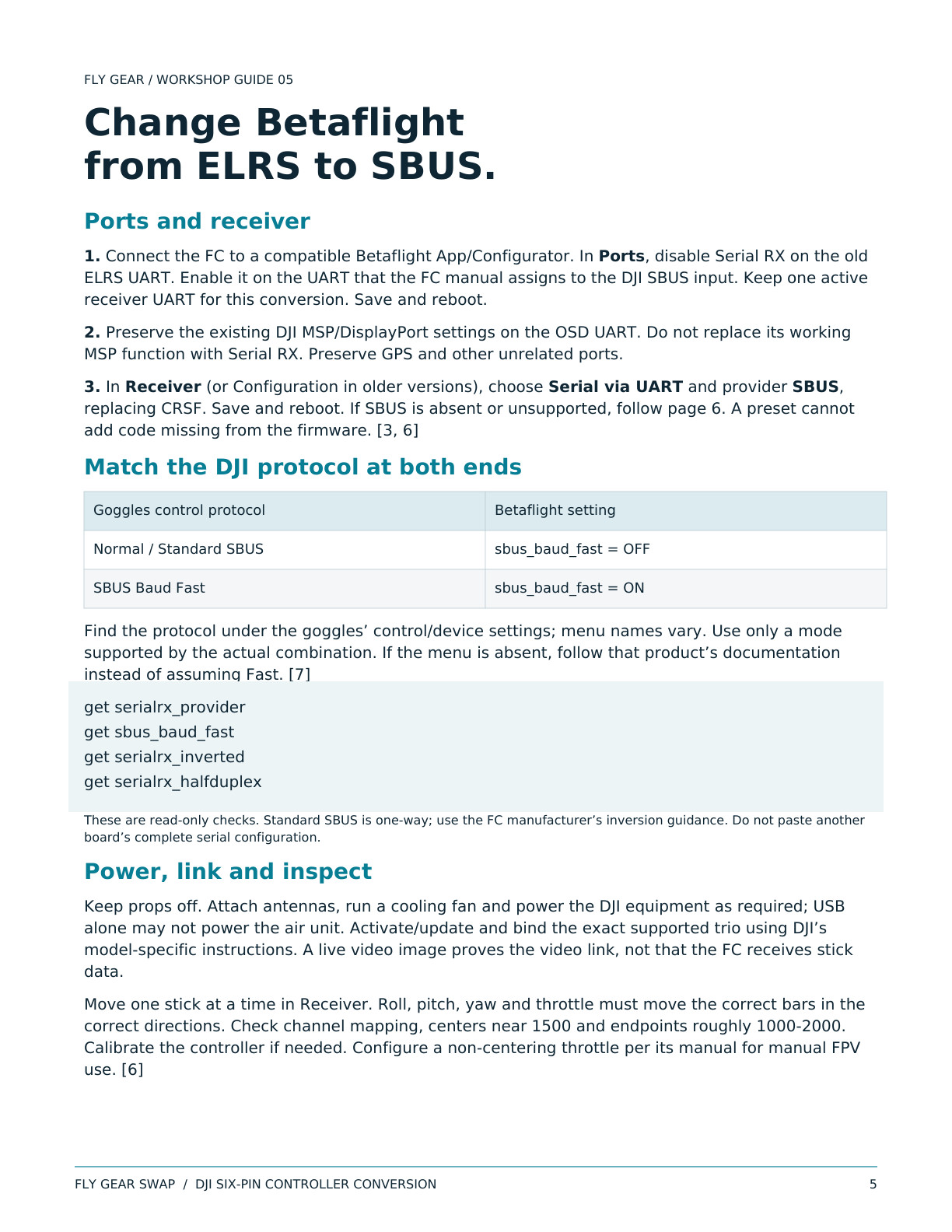
Six wires, two signal paths
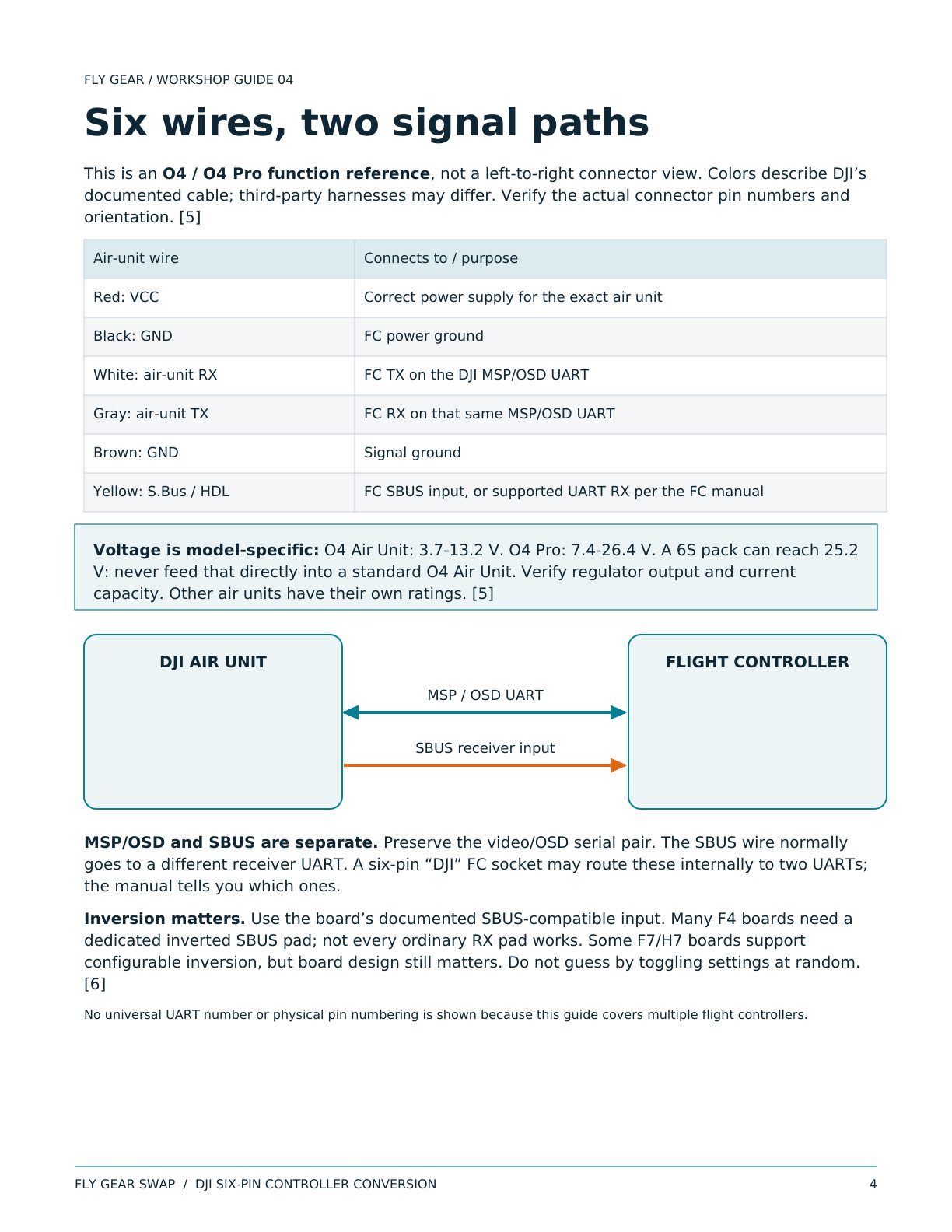
This is an O4 / O4 Pro function reference, not a left-to-right connector view. Colors describe DJI’s
documented cable; third-party harnesses may differ. Verify the actual connector pin numbers and
orientation. [5]
Air-unit wire
Connects to / purpose
Red: VCC
Correct power supply for the exact air unit
Black: GND
FC power ground
White: air-unit RX
FC TX on the DJI MSP/OSD UART
Gray: air-unit TX
FC RX on that same MSP/OSD UART
Brown: GND
Signal ground
Yellow: S.Bus / HDL
FC SBUS input, or supported UART RX per the FC manual
Voltage is model-specific: O4 Air Unit: 3.7-13.2 V. O4 Pro: 7.4-26.4 V. A 6S pack can reach 25.2
V: never feed that directly into a standard O4 Air Unit. Verify regulator output and current
capacity. Other air units have their own ratings. [5]
DJI AIR UNIT
FLIGHT CONTROLLER
MSP / OSD UART
SBUS receiver input
MSP/OSD and SBUS are separate. Preserve the video/OSD serial pair. The SBUS wire normally
goes to a different receiver UART. A six-pin “DJI” FC socket may route these internally to two UARTs;
the manual tells you which ones.
Inversion matters. Use the board’s documented SBUS-compatible input. Many F4 boards need a
dedicated inverted SBUS pad; not every ordinary RX pad works. Some F7/H7 boards support
configurable inversion, but board design still matters. Do not guess by toggling settings at random.
[6]
No universal UART number or physical pin numbering is shown because this guide covers multiple flight controllers.
Page 5 text
FLY GEAR SWAP  /  DJI SIX-PIN CONTROLLER CONVERSION
5
FLY GEAR / WORKSHOP GUIDE 05
Change Betaflight
from ELRS to SBUS.
Ports and receiver
1. Connect the FC to a compatible Betaflight App/Configurator. In Ports, disable Serial RX on the old
ELRS UART. Enable it on the UART that the FC manual assigns to the DJI SBUS input. Keep one active
receiver UART for this conversion. Save and reboot.
2. Preserve the existing DJI MSP/DisplayPort settings on the OSD UART. Do not replace its working
MSP function with Serial RX. Preserve GPS and other unrelated ports.
3. In Receiver (or Configuration in older versions), choose Serial via UART and provider SBUS,
replacing CRSF. Save and reboot. If SBUS is absent or unsupported, follow page 6. A preset cannot
add code missing from the firmware. [3, 6]
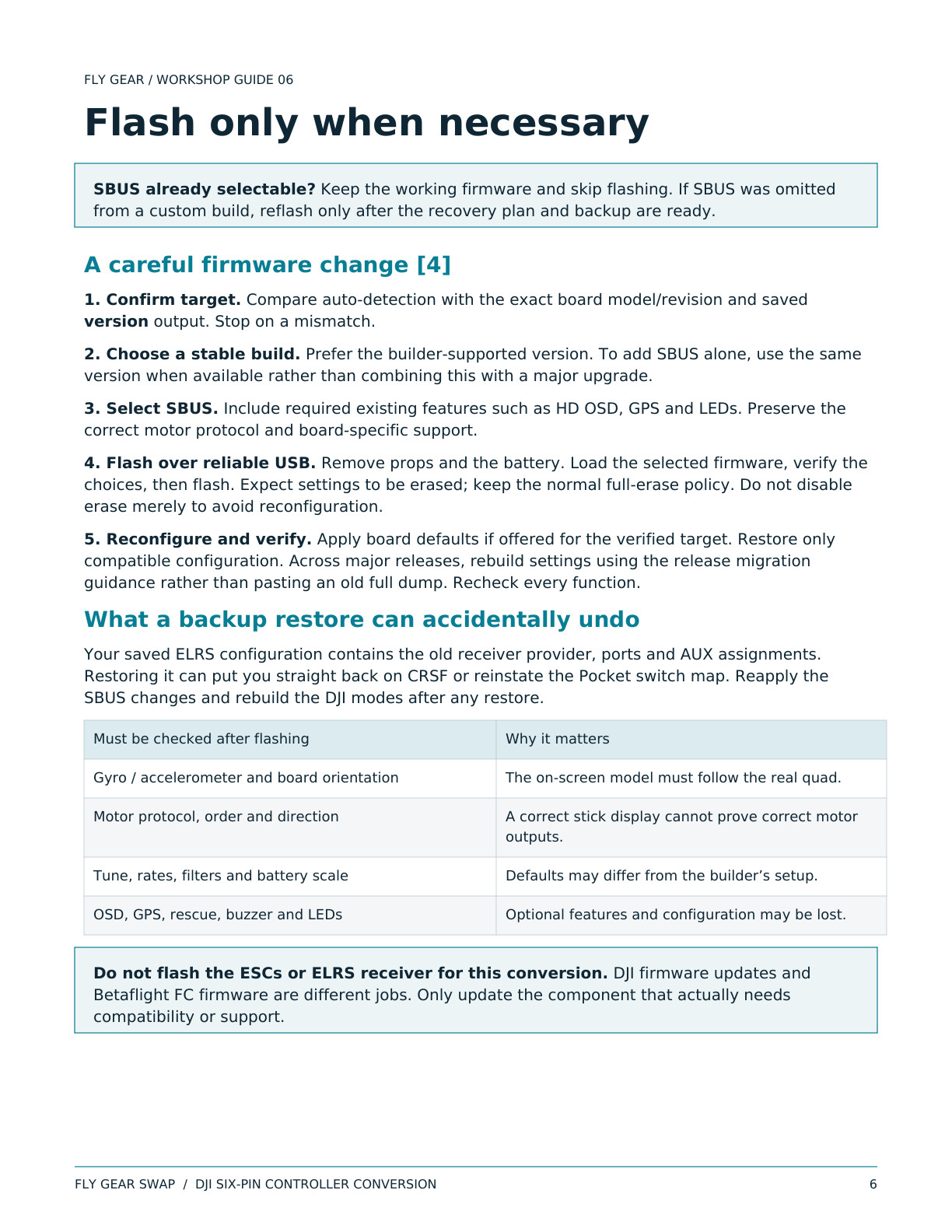
Match the DJI protocol at both ends
Goggles control protocol
Betaflight setting
Normal / Standard SBUS
sbus_baud_fast = OFF
SBUS Baud Fast
sbus_baud_fast = ON
Find the protocol under the goggles’ control/device settings; menu names vary. Use only a mode
supported by the actual combination. If the menu is absent, follow that product’s documentation
instead of assuming Fast. [7]
get serialrx_provider
get sbus_baud_fast
get serialrx_inverted
get serialrx_halfduplex
These are read-only checks. Standard SBUS is one-way; use the FC manufacturer’s inversion guidance. Do not paste another
board’s complete serial configuration.
Power, link and inspect
Keep props off. Attach antennas, run a cooling fan and power the DJI equipment as required; USB
alone may not power the air unit. Activate/update and bind the exact supported trio using DJI’s
model-specific instructions. A live video image proves the video link, not that the FC receives stick
data.
Move one stick at a time in Receiver. Roll, pitch, yaw and throttle must move the correct bars in the
correct directions. Check channel mapping, centers near 1500 and endpoints roughly 1000-2000.
Calibrate the controller if needed. Configure a non-centering throttle per its manual for manual FPV
use. [6]
Page 6 text
FLY GEAR SWAP  /  DJI SIX-PIN CONTROLLER CONVERSION
6
FLY GEAR / WORKSHOP GUIDE 06
Flash only when necessary
SBUS already selectable? Keep the working firmware and skip flashing. If SBUS was omitted
from a custom build, reflash only after the recovery plan and backup are ready.
A careful firmware change [4]
1. Confirm target. Compare auto-detection with the exact board model/revision and saved
version output. Stop on a mismatch.
2. Choose a stable build. Prefer the builder-supported version. To add SBUS alone, use the same
version when available rather than combining this with a major upgrade.
3. Select SBUS. Include required existing features such as HD OSD, GPS and LEDs. Preserve the
correct motor protocol and board-specific support.
4. Flash over reliable USB. Remove props and the battery. Load the selected firmware, verify the
choices, then flash. Expect settings to be erased; keep the normal full-erase policy. Do not disable
erase merely to avoid reconfiguration.
5. Reconfigure and verify. Apply board defaults if offered for the verified target. Restore only
compatible configuration. Across major releases, rebuild settings using the release migration
guidance rather than pasting an old full dump. Recheck every function.
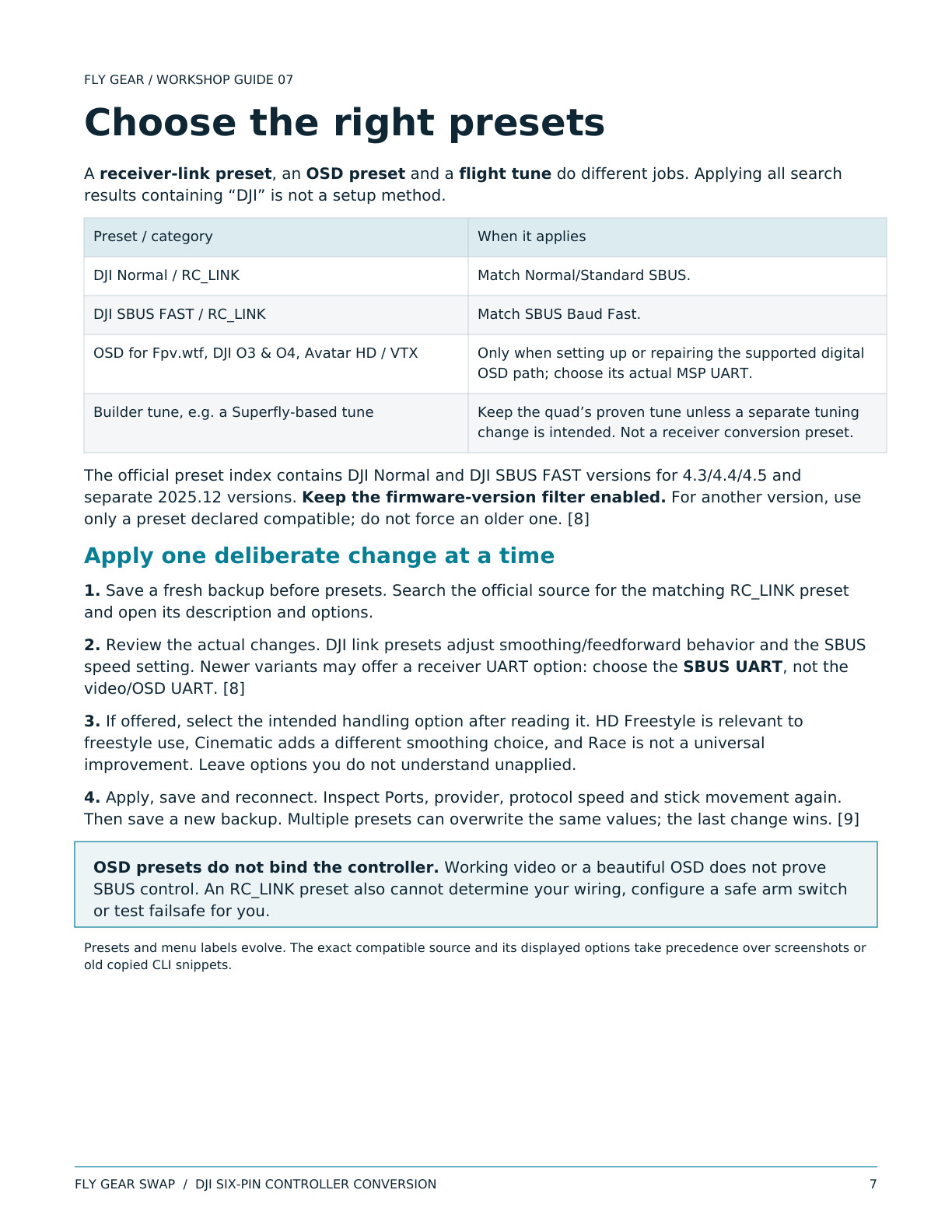
What a backup restore can accidentally undo
Your saved ELRS configuration contains the old receiver provider, ports and AUX assignments.
Restoring it can put you straight back on CRSF or reinstate the Pocket switch map. Reapply the
SBUS changes and rebuild the DJI modes after any restore.
Must be checked after flashing
Why it matters
Gyro / accelerometer and board orientation
The on-screen model must follow the real quad.
Motor protocol, order and direction
A correct stick display cannot prove correct motor
outputs.
Tune, rates, filters and battery scale
Defaults may differ from the builder’s setup.
OSD, GPS, rescue, buzzer and LEDs
Optional features and configuration may be lost.
Do not flash the ESCs or ELRS receiver for this conversion. DJI firmware updates and
Betaflight FC firmware are different jobs. Only update the component that actually needs
compatibility or support.
Page 7 text
FLY GEAR SWAP  /  DJI SIX-PIN CONTROLLER CONVERSION
7
FLY GEAR / WORKSHOP GUIDE 07
Choose the right presets
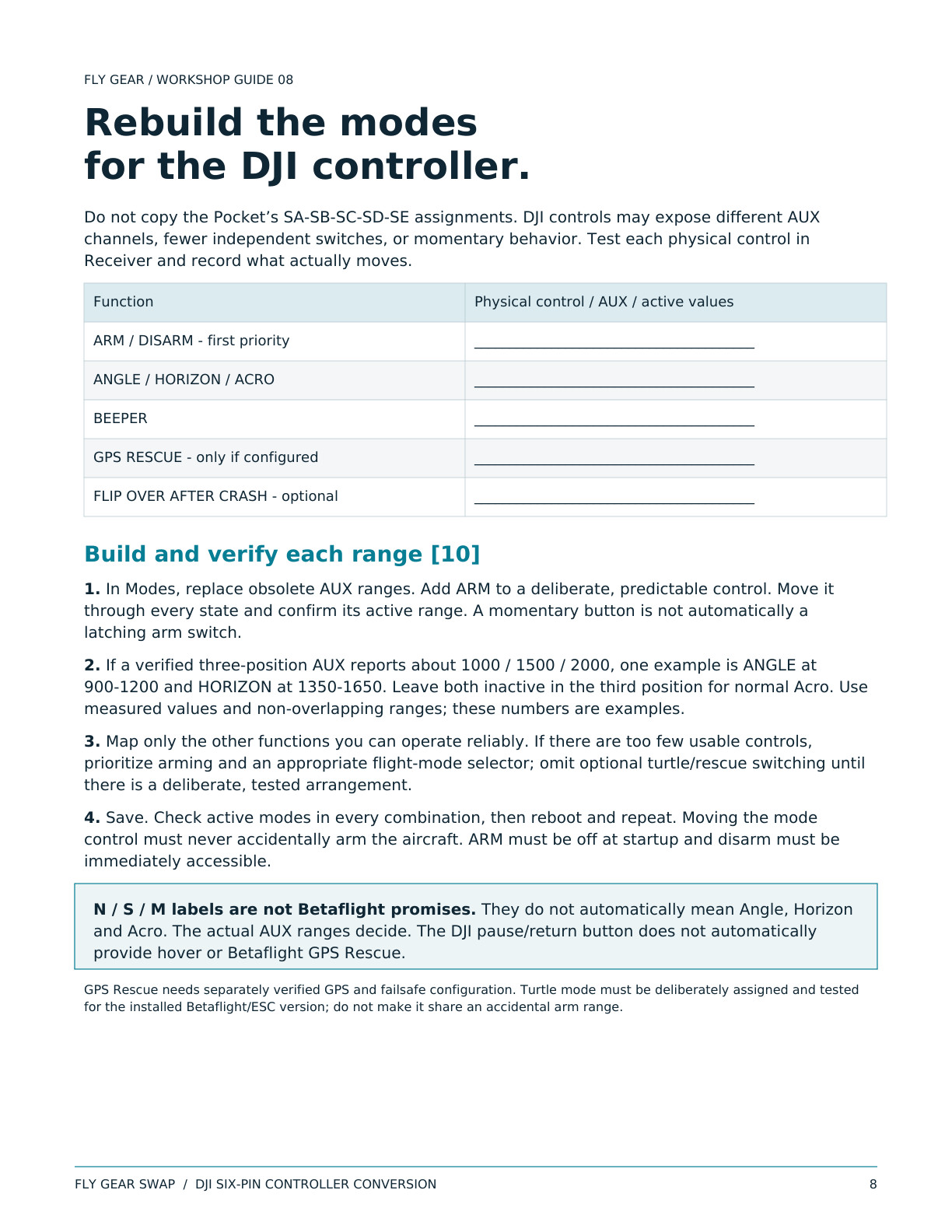
A receiver-link preset, an OSD preset and a flight tune do different jobs. Applying all search
results containing “DJI” is not a setup method.
Preset / category
When it applies
DJI Normal / RC_LINK
Match Normal/Standard SBUS.
DJI SBUS FAST / RC_LINK
Match SBUS Baud Fast.
OSD for Fpv.wtf, DJI O3 & O4, Avatar HD / VTX
Only when setting up or repairing the supported digital
OSD path; choose its actual MSP UART.
Builder tune, e.g. a Superfly-based tune
Keep the quad’s proven tune unless a separate tuning
change is intended. Not a receiver conversion preset.
The official preset index contains DJI Normal and DJI SBUS FAST versions for 4.3/4.4/4.5 and
separate 2025.12 versions. Keep the firmware-version filter enabled. For another version, use
only a preset declared compatible; do not force an older one. [8]
Apply one deliberate change at a time
1. Save a fresh backup before presets. Search the official source for the matching RC_LINK preset
and open its description and options.
2. Review the actual changes. DJI link presets adjust smoothing/feedforward behavior and the SBUS
speed setting. Newer variants may offer a receiver UART option: choose the SBUS UART, not the
video/OSD UART. [8]
3. If offered, select the intended handling option after reading it. HD Freestyle is relevant to
freestyle use, Cinematic adds a different smoothing choice, and Race is not a universal
improvement. Leave options you do not understand unapplied.
4. Apply, save and reconnect. Inspect Ports, provider, protocol speed and stick movement again.
Then save a new backup. Multiple presets can overwrite the same values; the last change wins. [9]
OSD presets do not bind the controller. Working video or a beautiful OSD does not prove
SBUS control. An RC_LINK preset also cannot determine your wiring, configure a safe arm switch
or test failsafe for you.
Presets and menu labels evolve. The exact compatible source and its displayed options take precedence over screenshots or
old copied CLI snippets.
Page 8 text
FLY GEAR SWAP  /  DJI SIX-PIN CONTROLLER CONVERSION
8
FLY GEAR / WORKSHOP GUIDE 08
Rebuild the modes
for the DJI controller.
Do not copy the Pocket’s SA-SB-SC-SD-SE assignments. DJI controls may expose different AUX
channels, fewer independent switches, or momentary behavior. Test each physical control in
Receiver and record what actually moves.
Function
Physical control / AUX / active values
ARM / DISARM - first priority
________________________________________
ANGLE / HORIZON / ACRO
________________________________________
BEEPER
________________________________________
GPS RESCUE - only if configured
________________________________________
FLIP OVER AFTER CRASH - optional
________________________________________
Build and verify each range [10]
1. In Modes, replace obsolete AUX ranges. Add ARM to a deliberate, predictable control. Move it
through every state and confirm its active range. A momentary button is not automatically a
latching arm switch.
2. If a verified three-position AUX reports about 1000 / 1500 / 2000, one example is ANGLE at
900-1200 and HORIZON at 1350-1650. Leave both inactive in the third position for normal Acro. Use
measured values and non-overlapping ranges; these numbers are examples.
3. Map only the other functions you can operate reliably. If there are too few usable controls,
prioritize arming and an appropriate flight-mode selector; omit optional turtle/rescue switching until
there is a deliberate, tested arrangement.
4. Save. Check active modes in every combination, then reboot and repeat. Moving the mode
control must never accidentally arm the aircraft. ARM must be off at startup and disarm must be
immediately accessible.
N / S / M labels are not Betaflight promises. They do not automatically mean Angle, Horizon
and Acro. The actual AUX ranges decide. The DJI pause/return button does not automatically
provide hover or Betaflight GPS Rescue.
GPS Rescue needs separately verified GPS and failsafe configuration. Turtle mode must be deliberately assigned and tested
for the installed Betaflight/ESC version; do not make it share an accidental arm range.
Page 9 text
FLY GEAR SWAP  /  DJI SIX-PIN CONTROLLER CONVERSION
9
FLY GEAR / WORKSHOP GUIDE 09
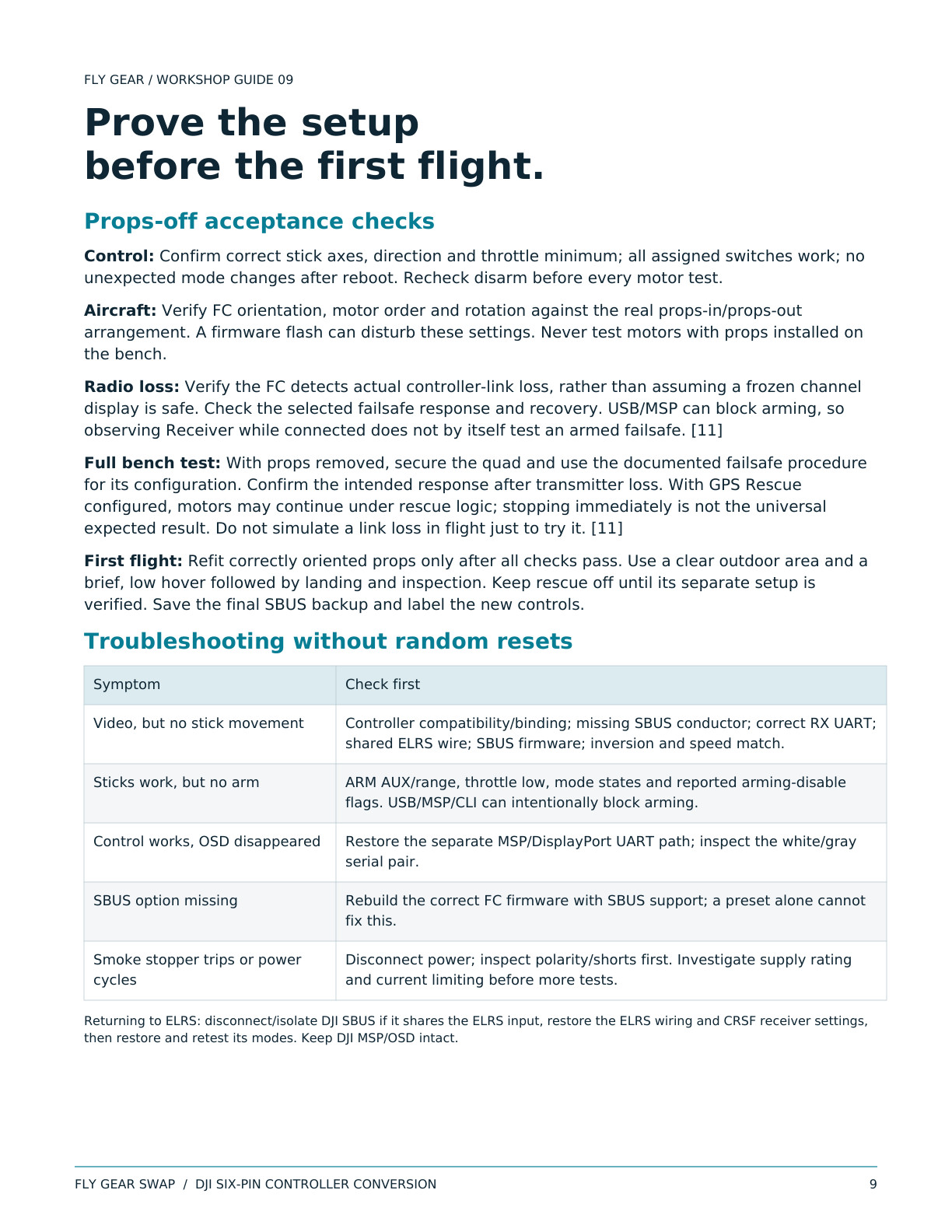
Prove the setup
before the first flight.
Props-off acceptance checks
Control: Confirm correct stick axes, direction and throttle minimum; all assigned switches work; no
unexpected mode changes after reboot. Recheck disarm before every motor test.
Aircraft: Verify FC orientation, motor order and rotation against the real props-in/props-out
arrangement. A firmware flash can disturb these settings. Never test motors with props installed on
the bench.
Radio loss: Verify the FC detects actual controller-link loss, rather than assuming a frozen channel
display is safe. Check the selected failsafe response and recovery. USB/MSP can block arming, so
observing Receiver while connected does not by itself test an armed failsafe. [11]
Full bench test: With props removed, secure the quad and use the documented failsafe procedure
for its configuration. Confirm the intended response after transmitter loss. With GPS Rescue
configured, motors may continue under rescue logic; stopping immediately is not the universal
expected result. Do not simulate a link loss in flight just to try it. [11]
First flight: Refit correctly oriented props only after all checks pass. Use a clear outdoor area and a
brief, low hover followed by landing and inspection. Keep rescue off until its separate setup is
verified. Save the final SBUS backup and label the new controls.
Troubleshooting without random resets
Symptom
Check first
Video, but no stick movement
Controller compatibility/binding; missing SBUS conductor; correct RX UART;
shared ELRS wire; SBUS firmware; inversion and speed match.
Sticks work, but no arm
ARM AUX/range, throttle low, mode states and reported arming-disable
flags. USB/MSP/CLI can intentionally block arming.
Control works, OSD disappeared
Restore the separate MSP/DisplayPort UART path; inspect the white/gray
serial pair.
SBUS option missing
Rebuild the correct FC firmware with SBUS support; a preset alone cannot
fix this.
Smoke stopper trips or power
cycles
Disconnect power; inspect polarity/shorts first. Investigate supply rating
and current limiting before more tests.
Returning to ELRS: disconnect/isolate DJI SBUS if it shares the ELRS input, restore the ELRS wiring and CRSF receiver settings,
then restore and retest its modes. Keep DJI MSP/OSD intact.
Page 10 text
FLY GEAR SWAP  /  DJI SIX-PIN CONTROLLER CONVERSION
10
FLY GEAR / WORKSHOP GUIDE 10
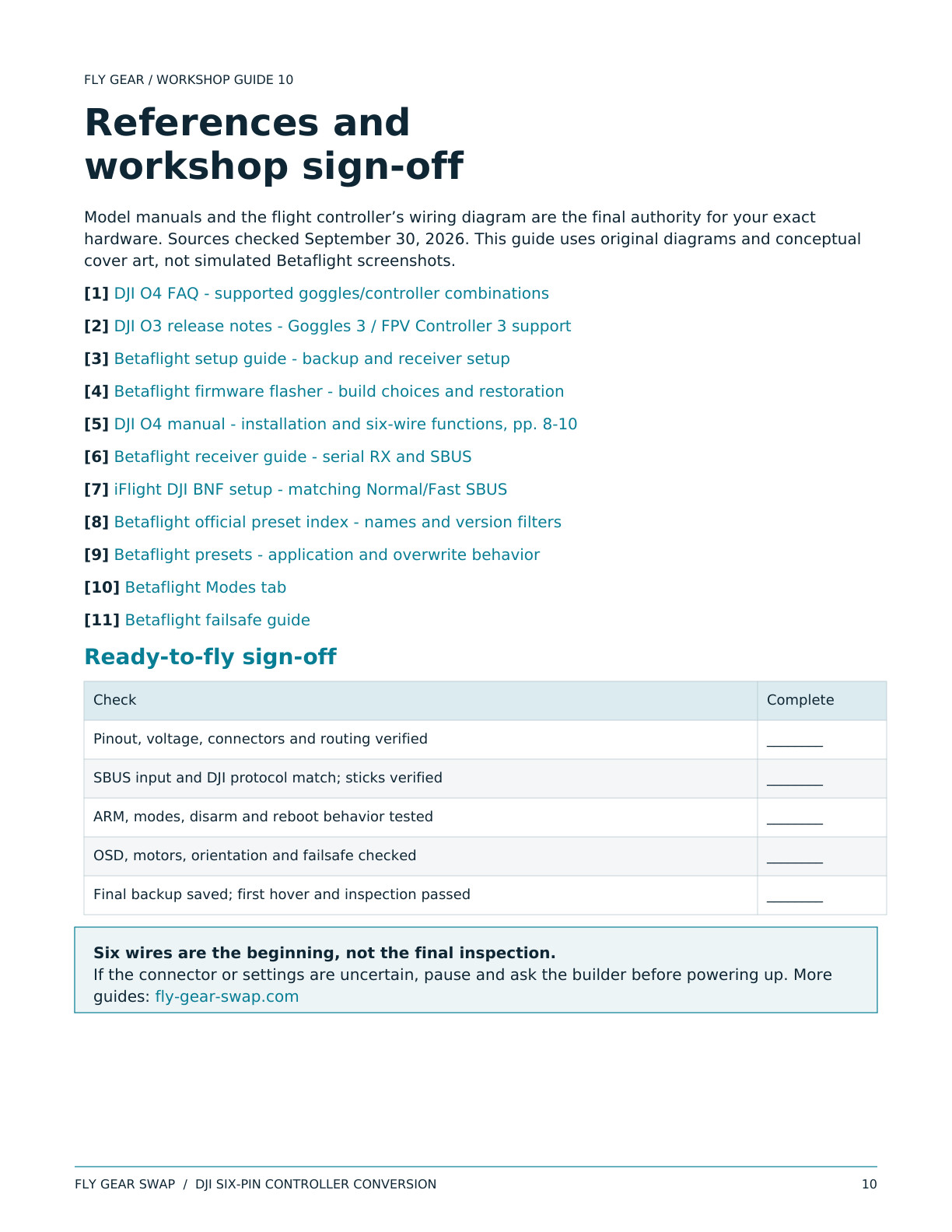
References and
workshop sign-off
Model manuals and the flight controller’s wiring diagram are the final authority for your exact
hardware. Sources checked September 30, 2026. This guide uses original diagrams and conceptual
cover art, not simulated Betaflight screenshots.
[1] DJI O4 FAQ - supported goggles/controller combinations
[2] DJI O3 release notes - Goggles 3 / FPV Controller 3 support
[3] Betaflight setup guide - backup and receiver setup
[4] Betaflight firmware flasher - build choices and restoration
[5] DJI O4 manual - installation and six-wire functions, pp. 8-10
[6] Betaflight receiver guide - serial RX and SBUS
[7] iFlight DJI BNF setup - matching Normal/Fast SBUS
[8] Betaflight official preset index - names and version filters
[9] Betaflight presets - application and overwrite behavior
[10] Betaflight Modes tab
[11] Betaflight failsafe guide
Ready-to-fly sign-off
Check
Complete
Pinout, voltage, connectors and routing verified
________
SBUS input and DJI protocol match; sticks verified
________
ARM, modes, disarm and reboot behavior tested
________
OSD, motors, orientation and failsafe checked
________
Final backup saved; first hover and inspection passed
________
Six wires are the beginning, not the final inspection.
If the connector or settings are uncertain, pause and ask the builder before powering up. More
guides: fly-gear-swap.com