Page 1 text
FLY GEAR  /  GETTING STARTED SERIES
01  /  06
Chris Requested Green
Apex EVO V4 5-inch quad + DJI Goggles 3 | Prepared September 29, 2026
FLY GEAR  |  fly-gear-swap.com
1
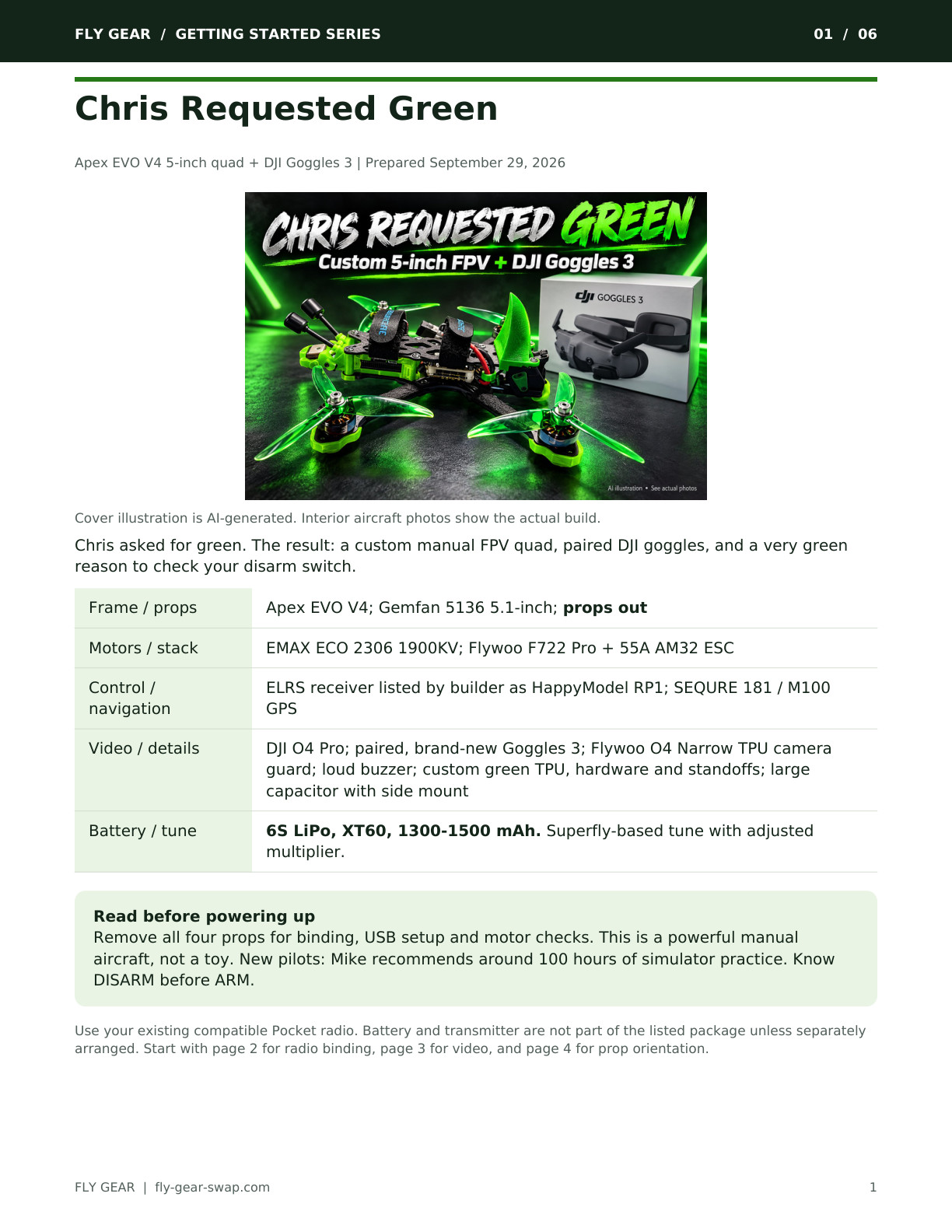
Cover illustration is AI-generated. Interior aircraft photos show the actual build.
Chris asked for green. The result: a custom manual FPV quad, paired DJI goggles, and a very green
reason to check your disarm switch.
Frame / props
Apex EVO V4; Gemfan 5136 5.1-inch; props out
Motors / stack
EMAX ECO 2306 1900KV; Flywoo F722 Pro + 55A AM32 ESC
Control /
navigation
ELRS receiver listed by builder as HappyModel RP1; SEQURE 181 / M100
GPS
Video / details
DJI O4 Pro; paired, brand-new Goggles 3; Flywoo O4 Narrow TPU camera
guard; loud buzzer; custom green TPU, hardware and standoffs; large
capacitor with side mount
Battery / tune
6S LiPo, XT60, 1300-1500 mAh. Superfly-based tune with adjusted
multiplier.
Read before powering up
Remove all four props for binding, USB setup and motor checks. This is a powerful manual
aircraft, not a toy. New pilots: Mike recommends around 100 hours of simulator practice. Know
DISARM before ARM.
Use your existing compatible Pocket radio. Battery and transmitter are not part of the listed package unless separately
arranged. Start with page 2 for radio binding, page 3 for video, and page 4 for prop orientation.
Page 2 text
FLY GEAR  /  GETTING STARTED SERIES
02  /  06
Bind your existing Pocket
ExpressLRS control link | All props OFF | USB disconnected during power cycling
FLY GEAR  |  fly-gear-swap.com
2
First: select the correct radio model
Use a Pocket with 2.4 GHz ExpressLRS (or a compatible external 2.4 GHz ELRS module). A
CC2500-only Pocket cannot bind to ELRS by itself. Select your established FPV model, throttle
down, ARM off. Keep other quads unpowered.
The three-plug method
1. Turn the Pocket OFF. Start with the quad battery unplugged and no USB cable connected. USB
can keep the receiver powered and prevent a true power cycle.
2. Plug in #1: connect the 6S pack, wait for the receiver LED to light, then disconnect within about
two seconds. Let the LED go fully dark.
3. Plug in #2: repeat the same short power-on, then disconnect and let the LED go dark.
4. Plug in #3: connect the battery and leave it connected. Look for a double blink, pause, double
blink on the receiver LED. That is bind mode.
5. Turn the Pocket ON. Open SYS > Tools > ExpressLRS, scroll to Bind and select it. The receiver
LED should become steady when connected. Check for telemetry / the connected indicator in the Lua
script.
1st plug
ON briefly, then OFF
2nd plug
ON briefly, then OFF
3rd plug
ON and LEAVE ON - then select Bind on the Pocket
If it does not bind
ELRS receiver firmware 3.4 or newer permits this method even with a stored binding identity. Older
firmware with a binding phrase may refuse manual bind mode; use the same phrase on both devices
or get help. Radio and receiver need compatible ELRS major versions, frequency band and regulatory
settings. Do not flash a guessed receiver target.
Bound does not mean ready to fly
With props still off, check every stick and switch in Betaflight Receiver and Modes. Reusing a radio
model is fine only if channel order, direction, ARM and mode assignments match this quad. A Model
Match warning needs the intended model/receiver ID checked; do not randomly change your other
aircraft models.
Receiver name is reproduced from the build specification. Read its actual label / firmware target before any update.
Keep the O4 Pro cool with a small fan while the pack is connected.
Page 3 text
FLY GEAR  /  GETTING STARTED SERIES
03  /  06
Pair the DJI Goggles 3
Video link | Already paired for this package; repeat only if needed
FLY GEAR  |  fly-gear-swap.com
3
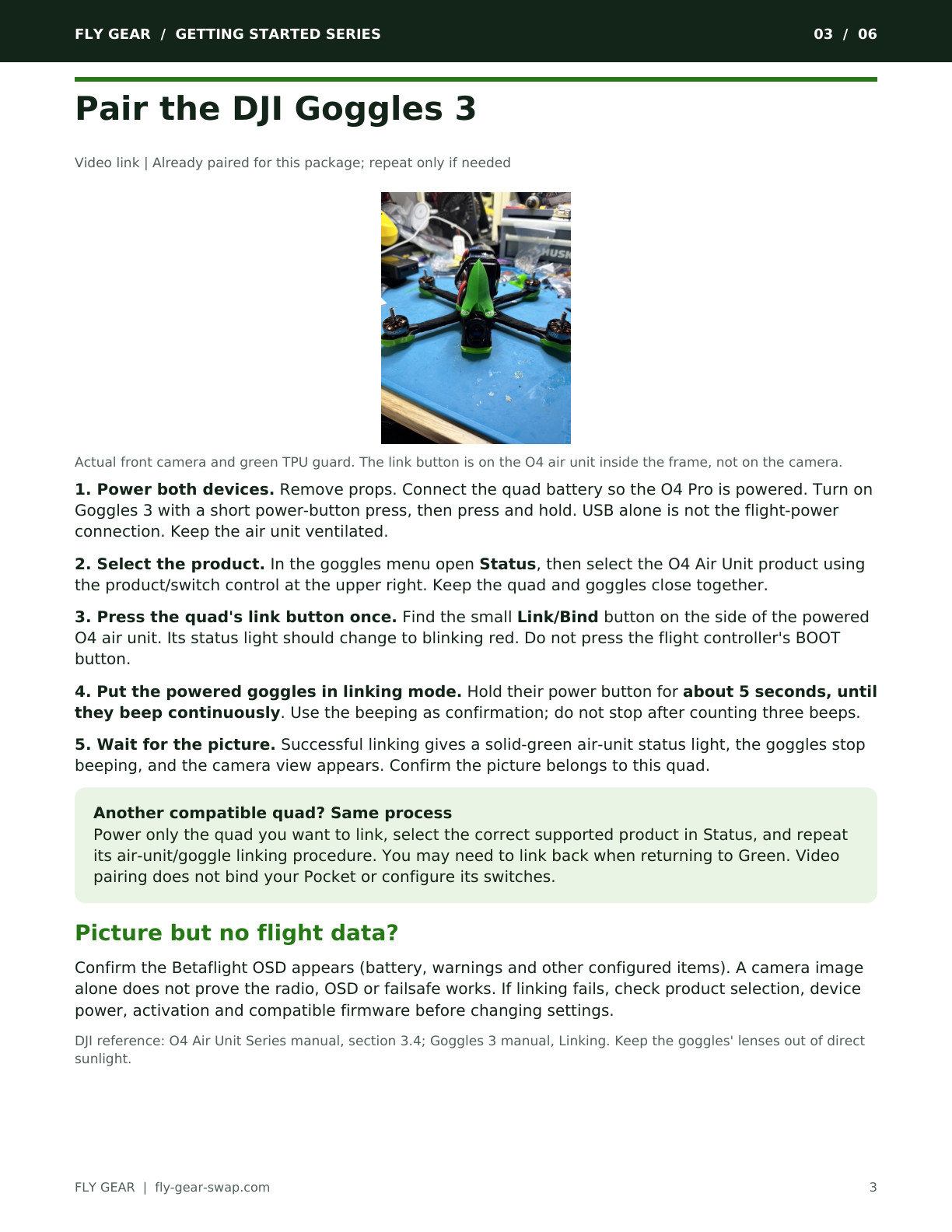
Actual front camera and green TPU guard. The link button is on the O4 air unit inside the frame, not on the camera.
1. Power both devices. Remove props. Connect the quad battery so the O4 Pro is powered. Turn on
Goggles 3 with a short power-button press, then press and hold. USB alone is not the flight-power
connection. Keep the air unit ventilated.
2. Select the product. In the goggles menu open Status, then select the O4 Air Unit product using
the product/switch control at the upper right. Keep the quad and goggles close together.
3. Press the quad's link button once. Find the small Link/Bind button on the side of the powered
O4 air unit. Its status light should change to blinking red. Do not press the flight controller's BOOT
button.
4. Put the powered goggles in linking mode. Hold their power button for about 5 seconds, until
they beep continuously. Use the beeping as confirmation; do not stop after counting three beeps.
5. Wait for the picture. Successful linking gives a solid-green air-unit status light, the goggles stop
beeping, and the camera view appears. Confirm the picture belongs to this quad.
Another compatible quad? Same process
Power only the quad you want to link, select the correct supported product in Status, and repeat
its air-unit/goggle linking procedure. You may need to link back when returning to Green. Video
pairing does not bind your Pocket or configure its switches.
Picture but no flight data?
Confirm the Betaflight OSD appears (battery, warnings and other configured items). A camera image
alone does not prove the radio, OSD or failsafe works. If linking fails, check product selection, device
power, activation and compatible firmware before changing settings.
DJI reference: O4 Air Unit Series manual, section 3.4; Goggles 3 manual, Linking. Keep the goggles' lenses out of direct
sunlight.
Page 4 text
FLY GEAR  /  GETTING STARTED SERIES
04  /  06
Props out: match all four
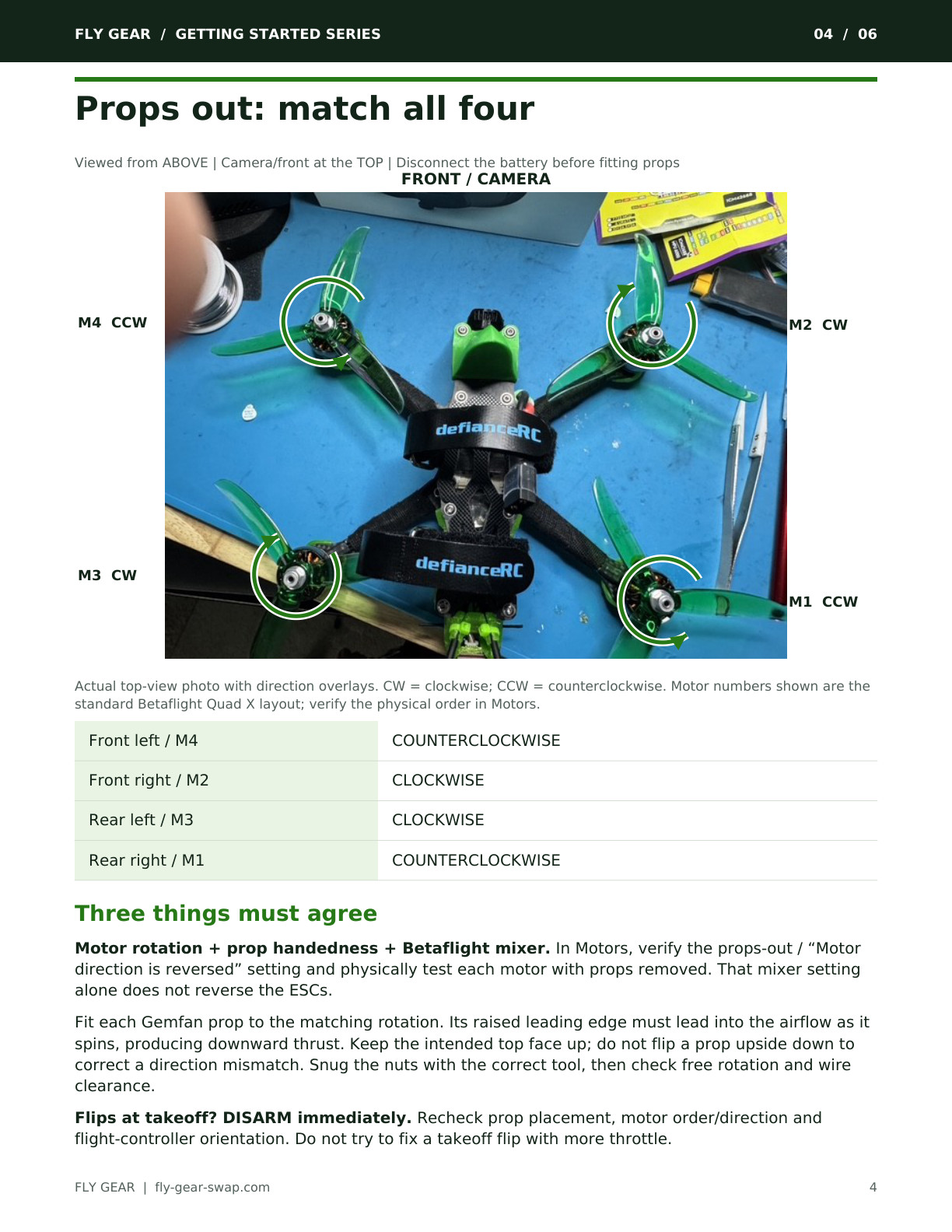
Viewed from ABOVE | Camera/front at the TOP | Disconnect the battery before fitting props
FLY GEAR  |  fly-gear-swap.com
4
FRONT / CAMERA
M4  CCW
M2  CW
M3  CW
M1  CCW
Actual top-view photo with direction overlays. CW = clockwise; CCW = counterclockwise. Motor numbers shown are the
standard Betaflight Quad X layout; verify the physical order in Motors.
Front left / M4
COUNTERCLOCKWISE
Front right / M2
CLOCKWISE
Rear left / M3
CLOCKWISE
Rear right / M1
COUNTERCLOCKWISE
Three things must agree
Motor rotation + prop handedness + Betaflight mixer. In Motors, verify the props-out / “Motor
direction is reversed” setting and physically test each motor with props removed. That mixer setting
alone does not reverse the ESCs.
Fit each Gemfan prop to the matching rotation. Its raised leading edge must lead into the airflow as it
spins, producing downward thrust. Keep the intended top face up; do not flip a prop upside down to
correct a direction mismatch. Snug the nuts with the correct tool, then check free rotation and wire
clearance.
Flips at takeoff? DISARM immediately. Recheck prop placement, motor order/direction and
flight-controller orientation. Do not try to fix a takeoff flip with more throttle.
Page 5 text
FLY GEAR  /  GETTING STARTED SERIES
05  /  06
Verify the setup in Betaflight
Props OFF throughout | Keep the existing Superfly tune and adjusted multiplier
FLY GEAR  |  fly-gear-swap.com
5
Save first, then inspect
Connect the flight controller with a USB data cable and a compatible Betaflight app/configurator. Save
a backup and a CLI diff all before changing anything. Do not reset, update firmware or load a new
preset just because an update is available. The tune and wiring configuration are specific to this build.
Setup
Tilt the physical quad: the on-screen model must tilt the same way. If it does
not, stop before any flight.
Receiver
Move one stick at a time: roll, pitch, yaw and throttle must follow correctly.
Check centered controls, low throttle and switch channels. Keep the installed
CRSF / UART configuration unless troubleshooting a verified problem.
Modes
Confirm ARM/DISARM first, then any ANGLE, BEEPER and GPS RESCUE
assignments. Acro/Rate is generally active when no leveling mode is
selected. Do not assume another quad's switch positions match.
Motors / failsafe
Verify physical motor order and props-out rotation. With props removed,
check radio-loss behavior and arming warnings. A GPS module does not
prove Rescue or its failsafe behavior is configured.
Your Pocket switch assignments
SA
ARM / DISARM
SB
ANGLE / HORIZON / ACRO
SC
GPS RESCUE
SD
BUZZER ON / OFF
SE
FLIP OVER AFTER CRASH (turtle mode)
Verify which physical switch position activates each function in Modes; these assignments do not specify up/down
positions. Angle self-levels and limits tilt; Horizon self-levels near center but allows flips; Acro needs continuous pilot
attitude control.
GPS Rescue: assigned to SC, verify before use
Let the SEQURE GPS acquire a fix under open sky, away from obstructions. Confirm satellite/fix data
and a valid home point before using any recovery feature. Inspect Rescue altitude, minimum
satellites, return behavior and throttle settings; use this aircraft's measured hover behavior, not a
number copied from another quad.
Test a manually triggered Rescue only in a large safe area with enough height, a healthy control link
and a clear way to cancel it. Do not test by intentionally switching off the radio in flight.
Page 6 text
FLY GEAR  /  GETTING STARTED SERIES
06  /  06
First pack and field checklist
6S XT60 LiPo, 1300-1500 mAh | Start gently; inspect after landing
FLY GEAR  |  fly-gear-swap.com
6
Battery and normal power-up
Balance-charge a healthy 6S LiPo on the correct charger setting; a standard full pack is 25.2 V (4.20
V/cell). Follow the battery maker's charge rate; 1C is 1.3 A for 1300 mAh or 1.5 A for 1500 mAh. Do not
charge unattended or use a damaged, swollen or hot pack. Let packs cool; use the charger's storage
mode when putting them away.
For normal flying: Pocket on with the intended model, throttle down and ARM off; goggles on; then
connect the quad battery on level ground. The radio-off sequence on page 2 is for binding only. Secure
the pack lengthwise with both straps and keep the XT60 lead and balance plug clear of the props.
Before every takeoff
Check: Inspect all four props/nuts, frame screws, motor bells, TPU, camera, GPS and antenna mounts.
Check the side capacitor and its leads for damage or exposed conductors.
Check: Confirm the correct pack voltage, stable video, ELRS connection/telemetry, OSD and expected
flight mode. Know ARM, DISARM and BEEPER by touch. Resolve all warnings.
Check: Verify GPS/home status if using Rescue. Use a clear flying area away from people, pets, roads
and obstacles; use an appropriate visual observer and follow applicable flying rules.
First hover and shutdown
Face the quad away from you. Step back, arm and make a brief, controlled low hover. After roughly
20-30 seconds, land, disarm and unplug the quad. Check for loose parts, unusual vibration and
excessive motor/ESC heat. If it shakes, flips or behaves unexpectedly, disarm immediately and return
to prop-off checks.
Watch battery sag and warnings; land with a sensible reserve. Do not keep flying to a fixed timer or
chase the lowest voltage. After landing: disarm, unplug the quad, then switch off goggles and radio.
Never reach for an armed aircraft. After a crash, disconnect power and inspect before trying again.
Quick fixes
No stick response: check ELRS bind, selected model and Receiver tab.
No video: check O4 power, selected goggles product and linking.
Will not arm: read the arming warning; check throttle, ARM state and USB.
Lost in grass: use SD; a backup-battery buzzer is not assumed.
SE: Flip Over After Crash
Disarm first. Only if the area and props are clear, select SE turtle mode, arm with SA, and use a brief
roll/pitch input to right the quad. Then disarm, turn SE off and return to normal mode before rearming.
Stop if it is tangled or does not flip promptly; retrieve it instead of overheating motors.
References and help
Official instructions checked for this guide: ExpressLRS binding; ELRS Lua script; DJI O4 manuals; Goggles 3 manual;
Betaflight Motors; RadioMaster Pocket. For this aircraft, ask Mike at fly-gear-swap.com.